Study
Overview
Study brings new lessons and scheduled reviews together in one session. Lessons introduce new material, followed by questions to practice remembering it. Reviews revisit items you've already learned to help you retain them over time.
See Lesson scheduling for which new items appear in your lessons, and Spaced repetition for how reviews are scheduled.
Starting a session
Open the Dashboard and click Study to begin. The counts on the button show the items currently available to study in your selected course.
If no lessons or questions are available, the button is unavailable. You can still practice learned items through extra study.
Lessons, Learning, and Reviews
The Study button distinguishes three categories:
- Lessons: new items available to be introduced.
- Learning: items already introduced in lessons whose initial questions you haven't yet completed.
- Reviews: previously learned items due for scheduled review.
These counts represent items, not individual questions. An item may have more than one question to complete. Newly introduced items move into Learning while you practice them; after you complete their initial questions, their first scheduled review is due one day later.
Lessons
Lessons introduce new items through a sequence of screens and short questions. Use the button at the bottom of each screen, or press Enter, to continue. The step indicator at the top shows your progress through the current lesson.
Character lessons
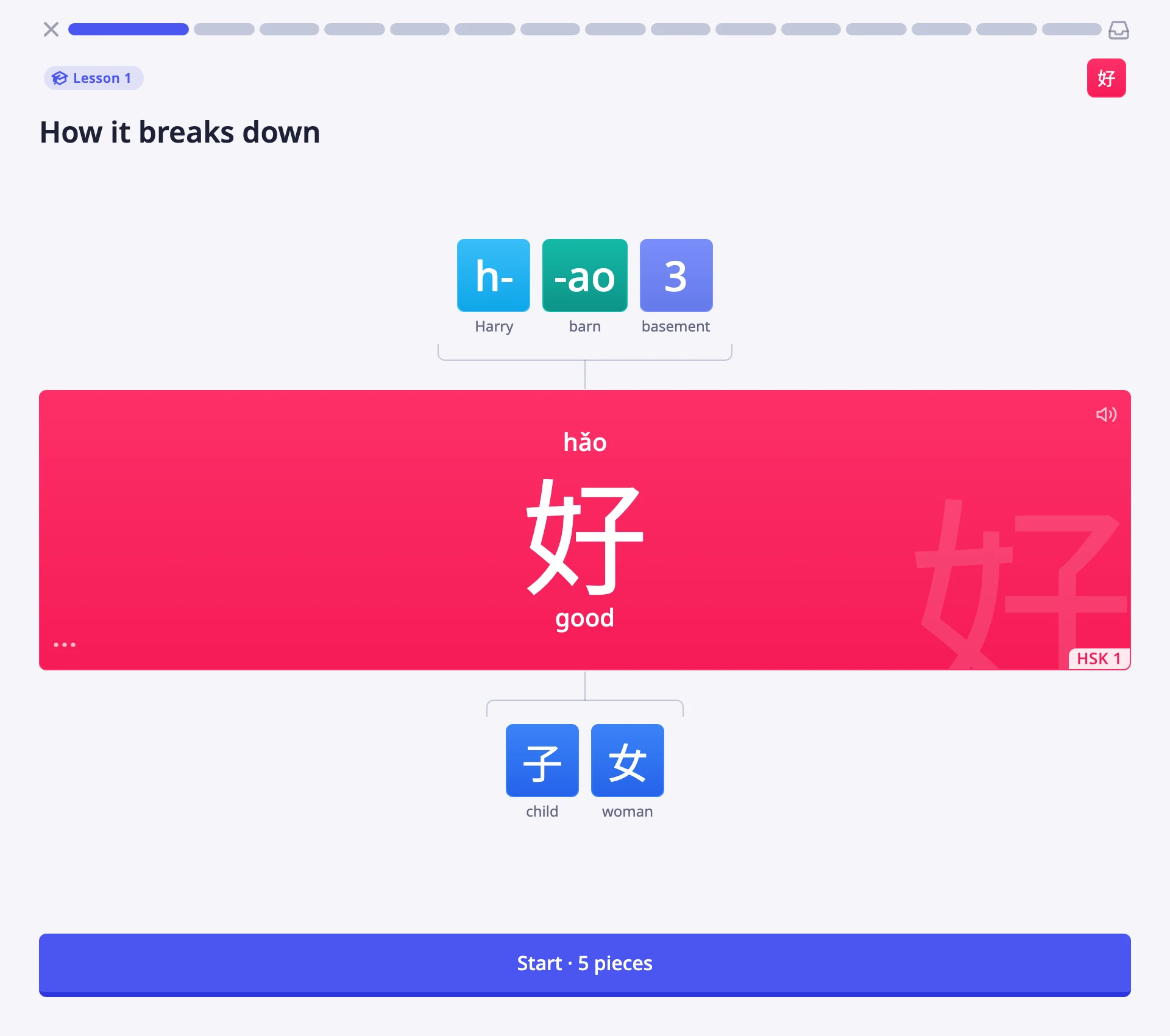
A character lesson connects the character's shape, meaning, and pronunciation:
-
The opening screens show the character and how it breaks down into components and sounds.
-
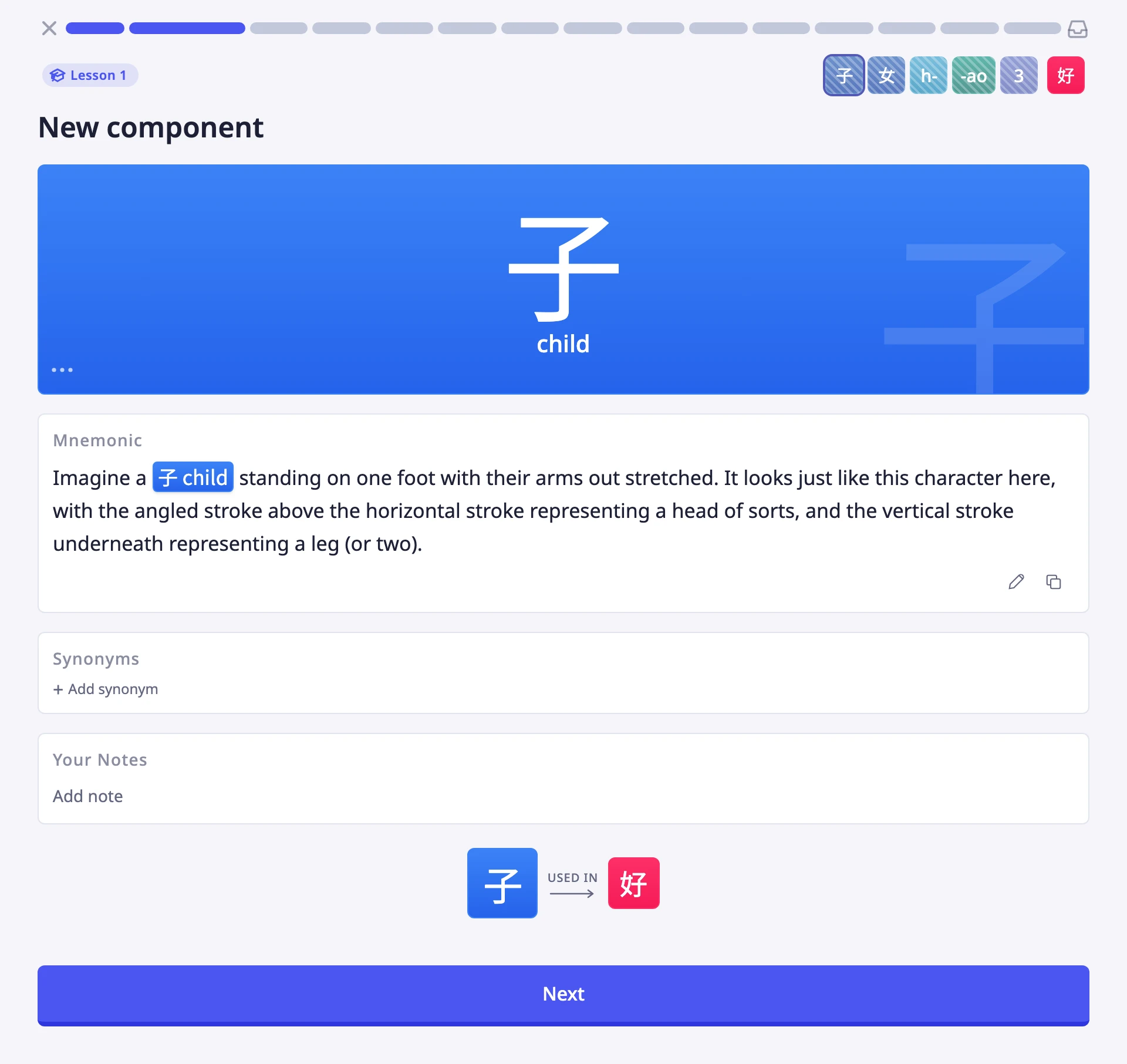
Component screens introduce any new components, including smaller components needed to understand them. Each shows the component's name and mnemonic, followed by a question about its name.
-
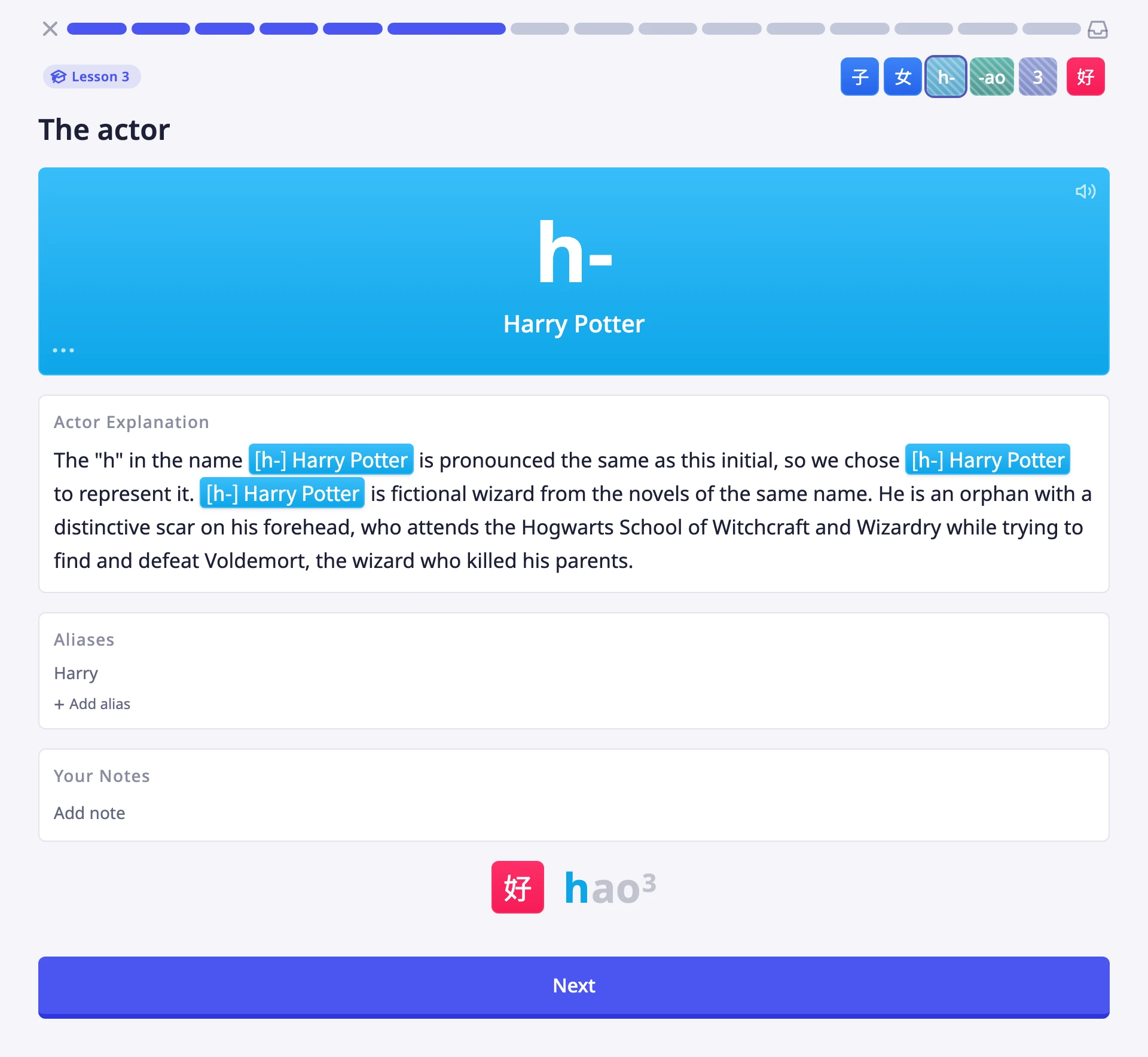
Sound screens introduce any new sounds and their associations, followed by questions to practice recalling them.
-
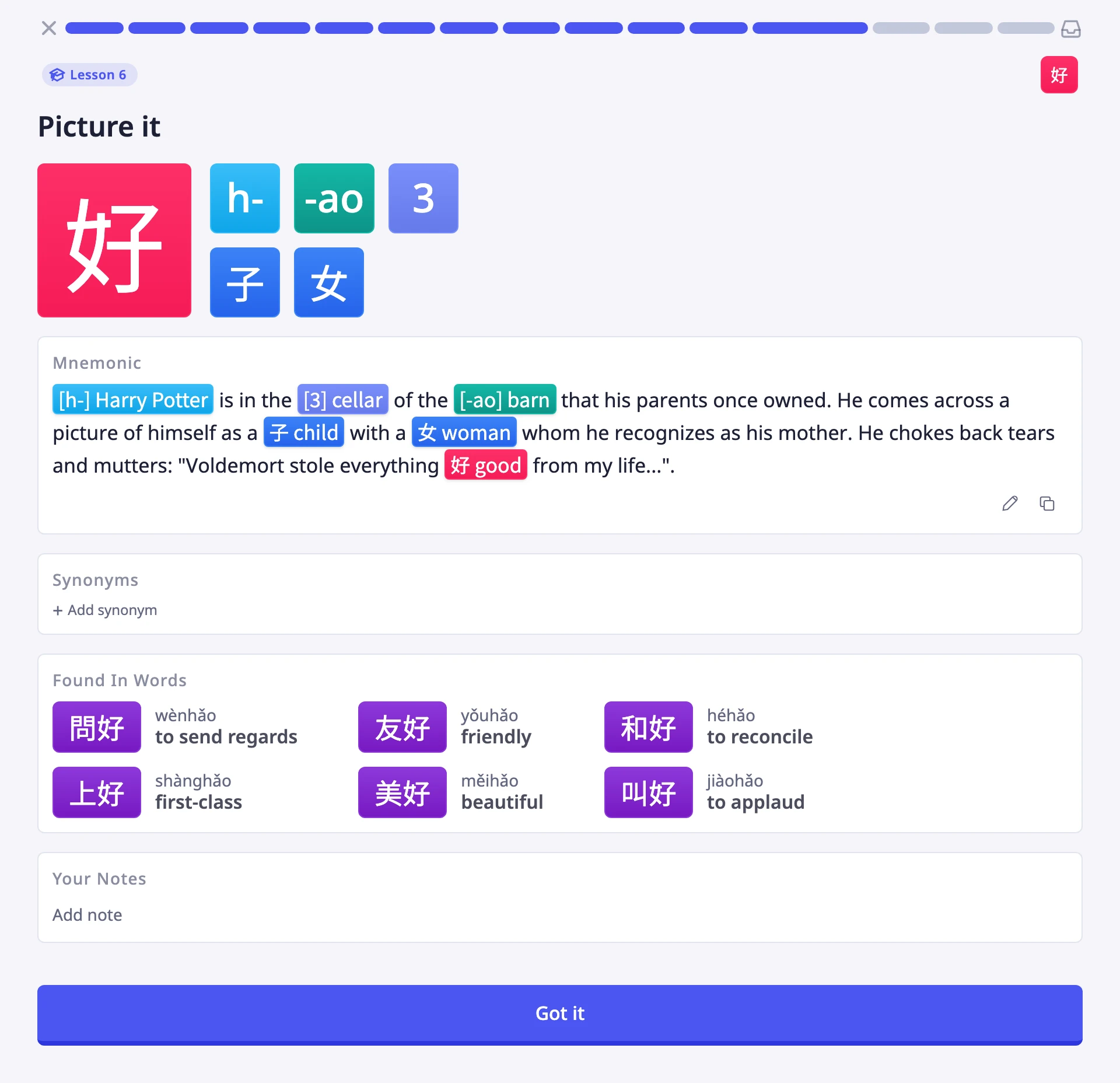
The mnemonic screen shows the character's mnemonic, which brings its components, sounds, and meaning together in a story.
-
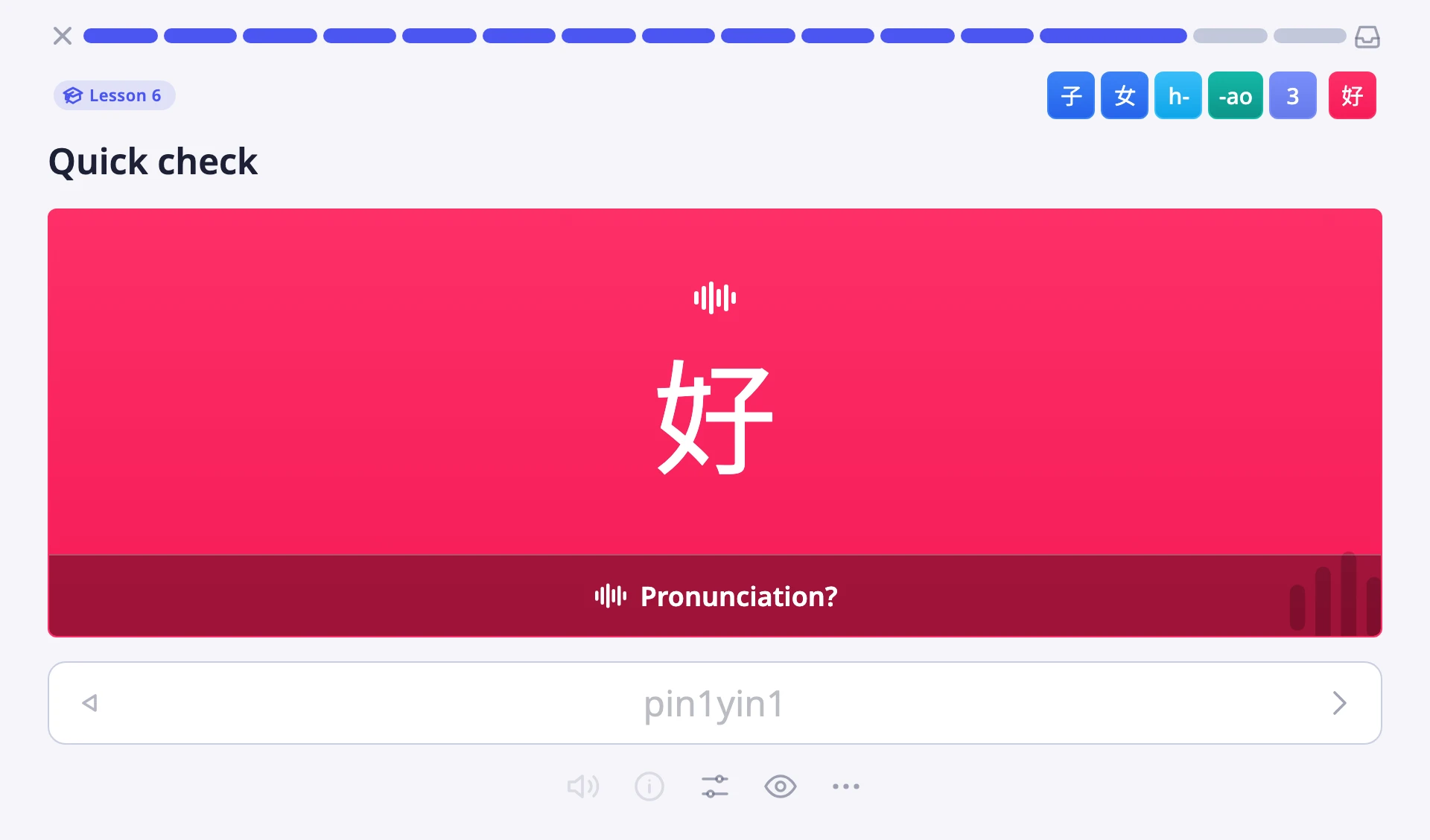
Practice questions check the character's pronunciation and meaning.
Components and sounds you've already been introduced to, or have skipped, aren't taught again in each character lesson. This lets later lessons build on what you've already covered.
Word lessons
A word lesson first shows the word's meaning, pronunciation, and constituent characters. It then presents the word's mnemonic and example sentences, so you can connect the characters to the word's meaning and see how it is used.
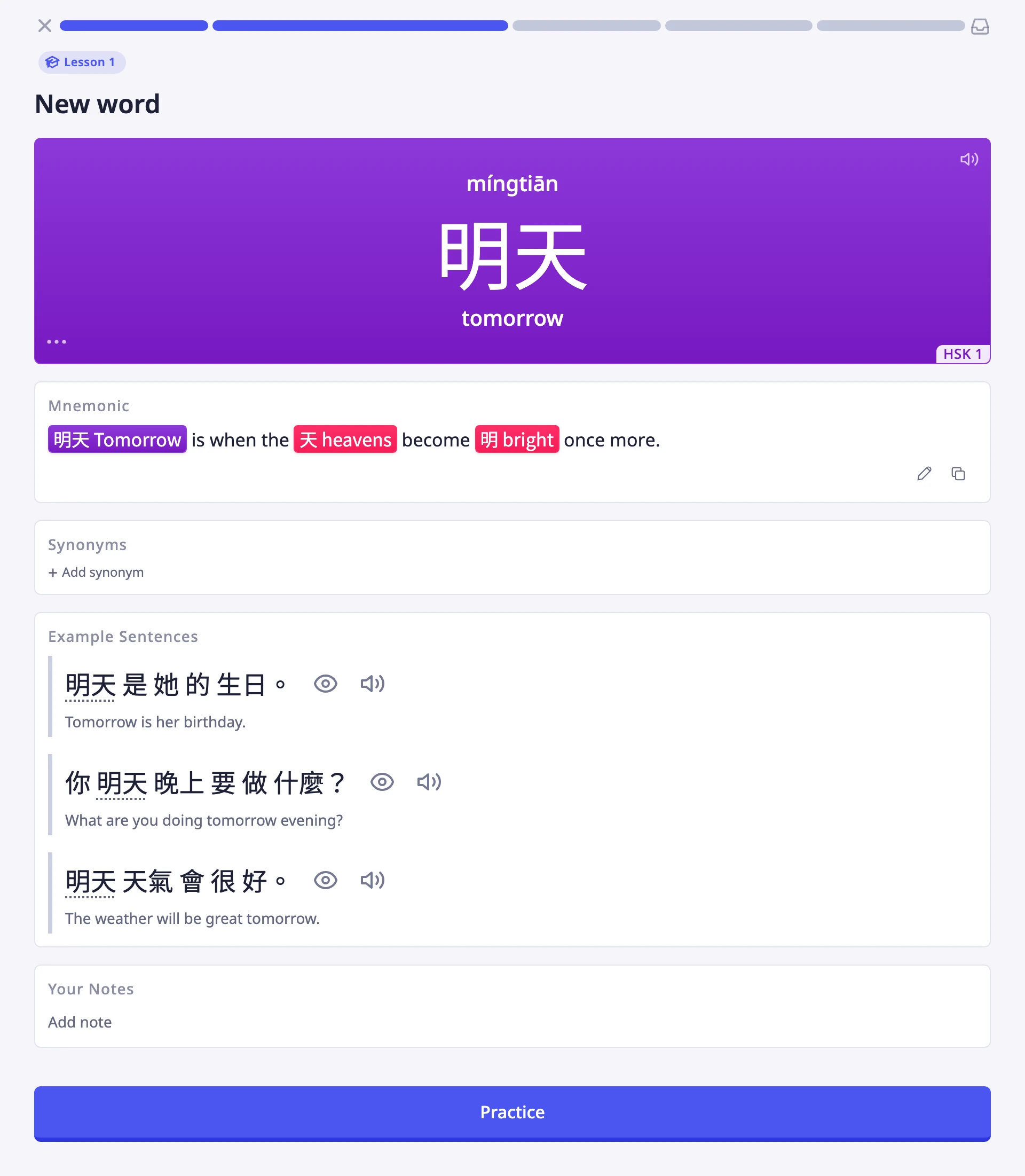
Click Practice to answer questions about the word's pronunciation and meaning.
Dictionary lessons
Dictionary items enter your lessons when you prioritize them. Their lessons show the entry's pronunciation, definitions, and character composition, rather than a handcrafted mnemonic or hand-picked example sentences. You can add your own definitions and notes while studying.
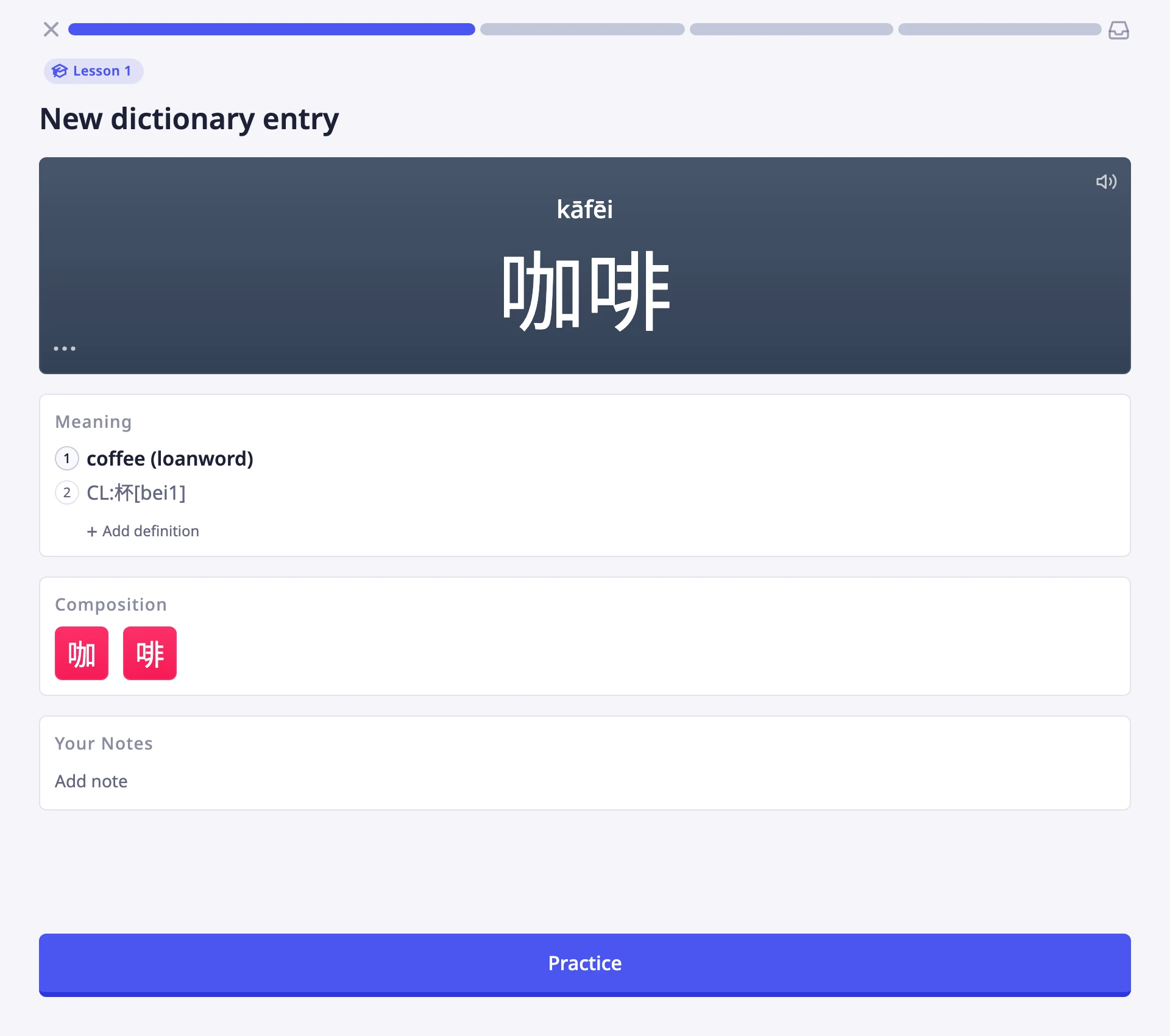
Click Practice to answer questions about the entry's pronunciation and meaning.
Practicing newly introduced items
The questions within a lesson let you check what you've just seen. If you answer incorrectly or reveal an answer, you can study it and try the question again before continuing. These checks do not create review-history entries or advance an item's SRS stage.
At the end of the lesson, a recap shows what you've covered.
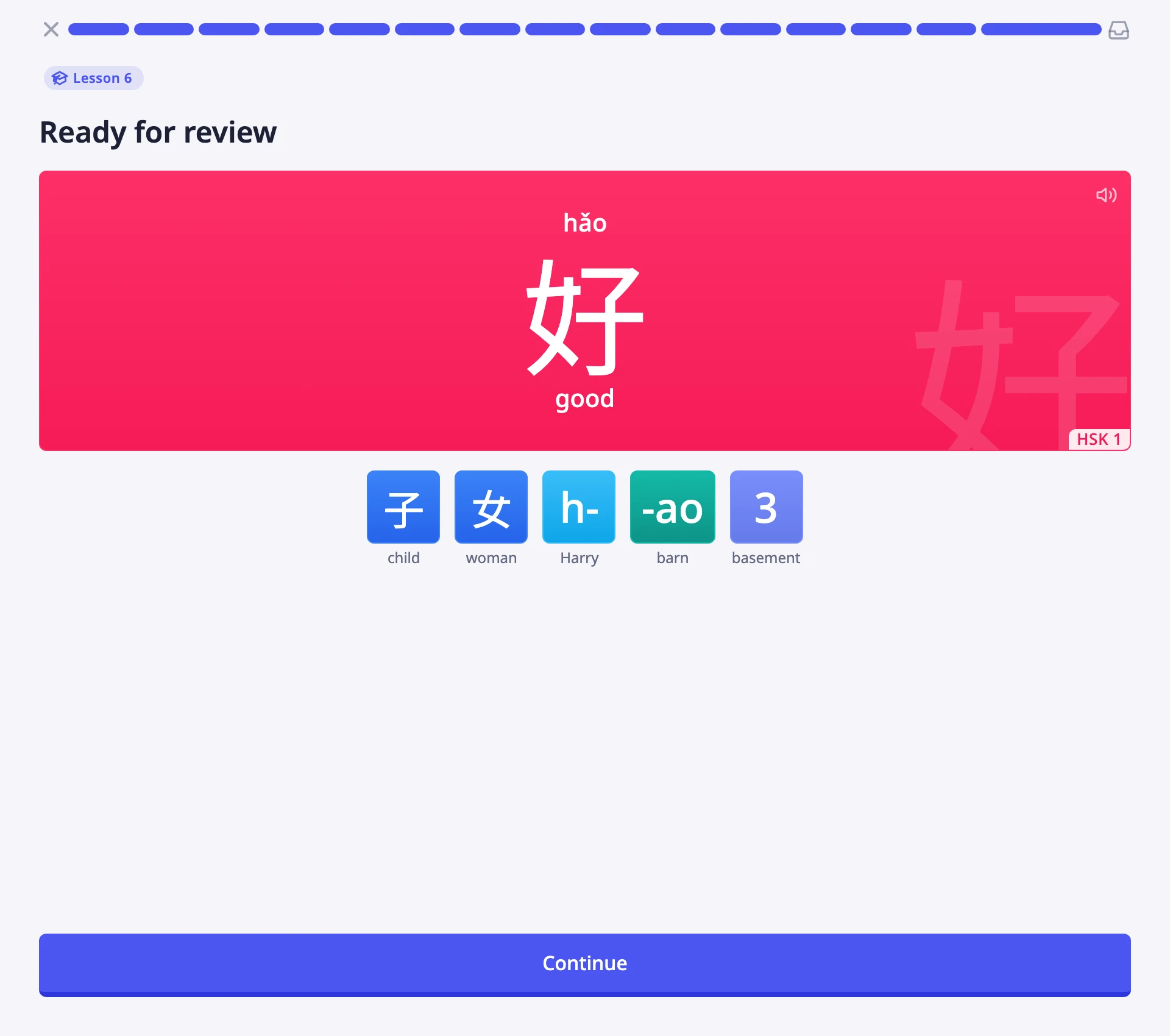
Click Continue to return to the session, where the newly introduced items join Learning for more practice. These questions can appear between other lessons or reviews rather than immediately after the lesson. A character and the new components and sounds introduced with it are practiced as individual items.
See Answering questions for answer formats and controls.
Completing a lesson
Finishing the lesson screens introduces the material, but its initial practice may still be unfinished. Items remain in Learning until you complete their initial questions.
Once an item's initial questions are complete, it leaves Learning and its first scheduled review is due one day later. Each item has its own questions to complete, even when several items are introduced in the same lesson. You can check the remaining Learning count in the session menu.
Reviews
Reviews ask questions about items you've already learned and that are due for practice. They begin with a question rather than the introductory screens shown in a lesson. The screen shows the item, the type of answer being requested, and an answer field.
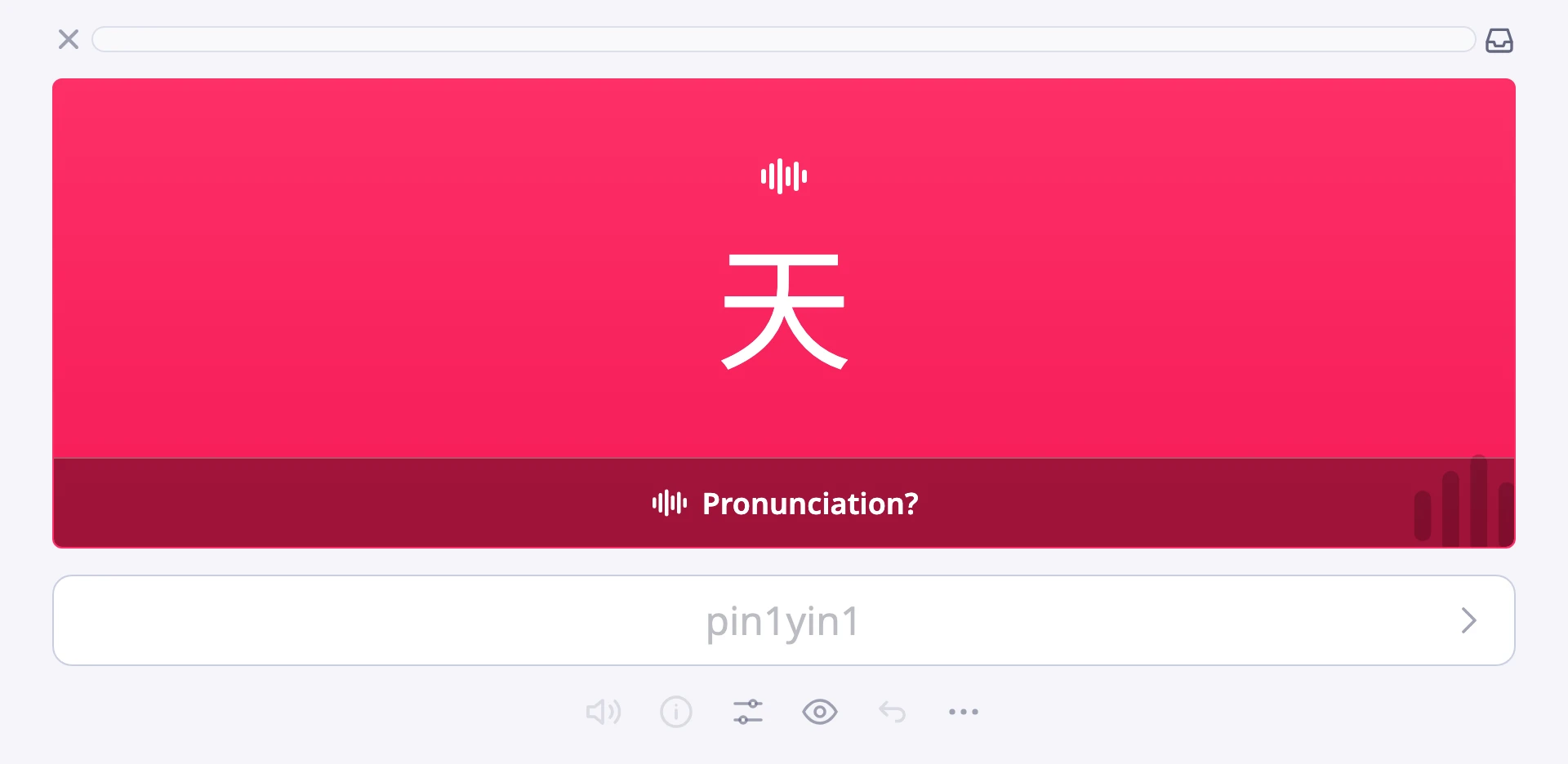
An item's review is complete once all of its questions have been answered correctly. Questions for an item may appear together or be separated by questions about other items. If an answer is incorrect or revealed, the question returns later in the session for another attempt. See Answering questions for answer formats, feedback, and controls.
Completing a review schedules the item's next review based on your answers. Correct answers generally lead to longer intervals, while mistakes bring the item back sooner. See Review intervals for how review intervals are calculated and how they determine an item's SRS stage.
Answering questions
Each question shows an item and asks for its pronunciation, meaning, name, or sound association. Enter your answer in the field below.
Question types
| Prompt | Expected answer |
|---|---|
| Pronunciation | The item's pronunciation in pinyin. |
| Meaning | An English meaning or definition. |
| Name | A component's name. |
| Actor, Place, or Spot | A sound's association: the person for an initial, the setting for a final, or the location for a tone. |
Entering answers
Meaning and name answers are in English and are not case-sensitive. Listed alternatives and your saved custom accepted answers are accepted too.
For pronunciation questions, type numbered pinyin, such as hao3 for 好 hǎo or hao3chi1 for 好吃 hǎochī . Include the tone number after each syllable, using 5 for the neutral tone. You can type v for ü, as in lv4. Accented pinyin is also accepted. For words, use the tones shown in HanziHero rather than applying tone sandhi.
Press Enter or click the right-arrow button in the answer field to check your answer. Once the result is shown, press Enter or click the arrow again to continue.
Correct and incorrect answers
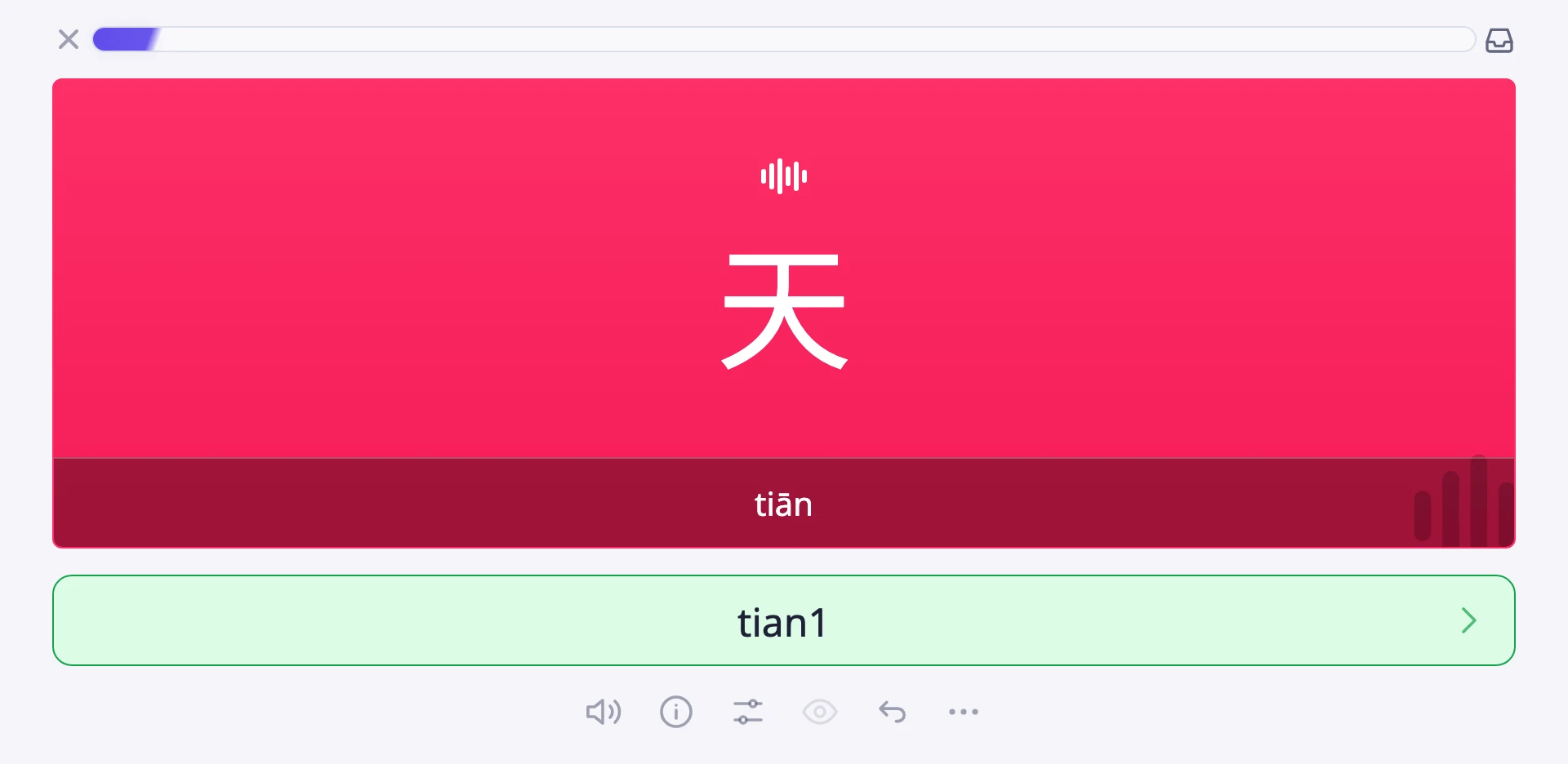
A correct answer turns the answer field green and shows the answer on the item card. Small typos in English answers may be accepted, with a message identifying the typo. Pronunciation answers must match an accepted reading, including its tones.
An incorrect answer turns the field amber and shows the expected answer. In a lesson, continuing lets you retry the same question before moving on. During reviews and initial practice after a lesson, the question returns later in the session instead. A later correct answer completes the question but does not erase an earlier mistake.
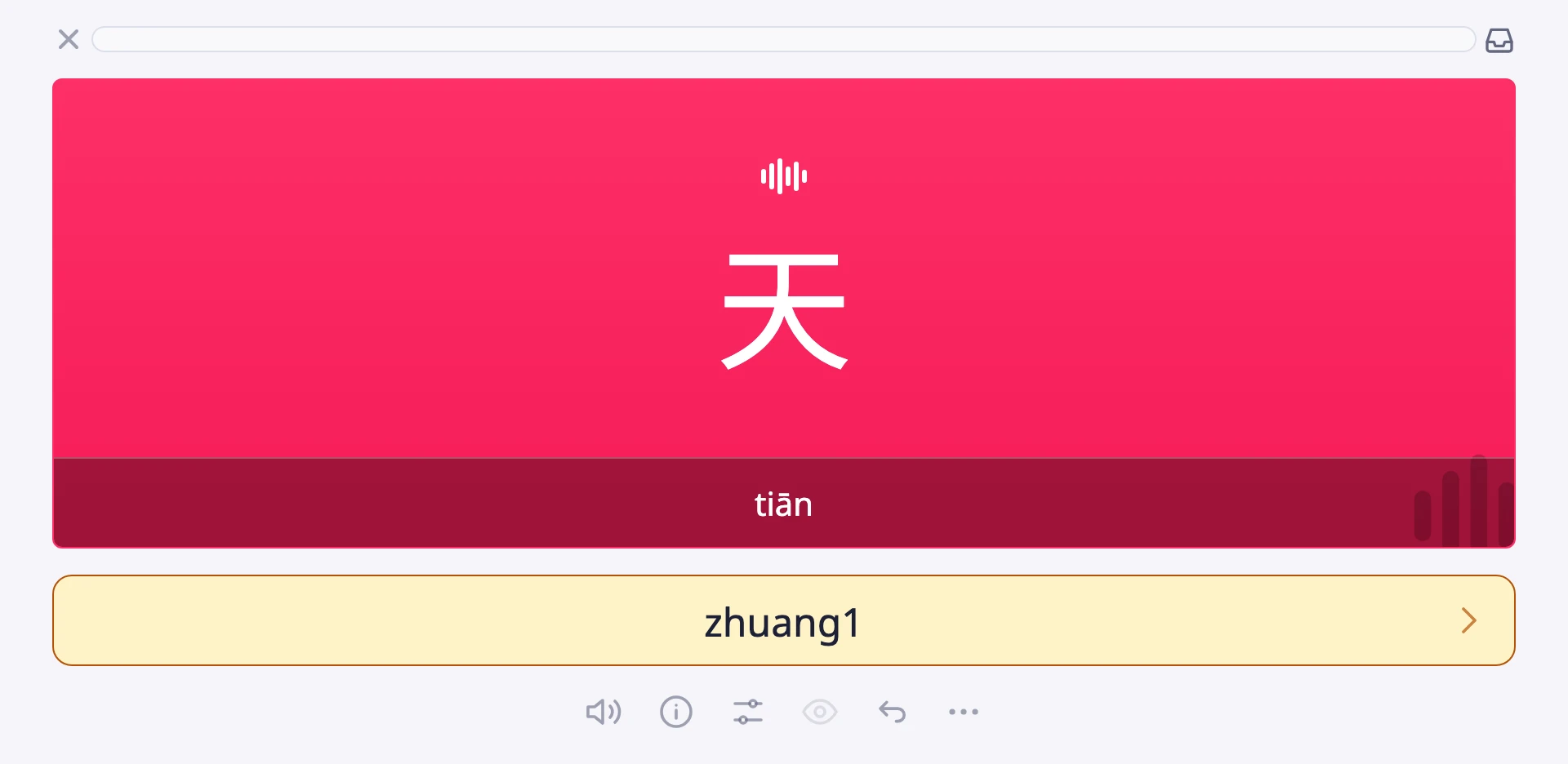
During reviews, some entries prompt a correction without counting a mistake—for example, an answer to the other question type, or invalid pinyin when pinyin answer validation is enabled. The hint explains what to correct, and the field stays open for another attempt.
Revealing an answer
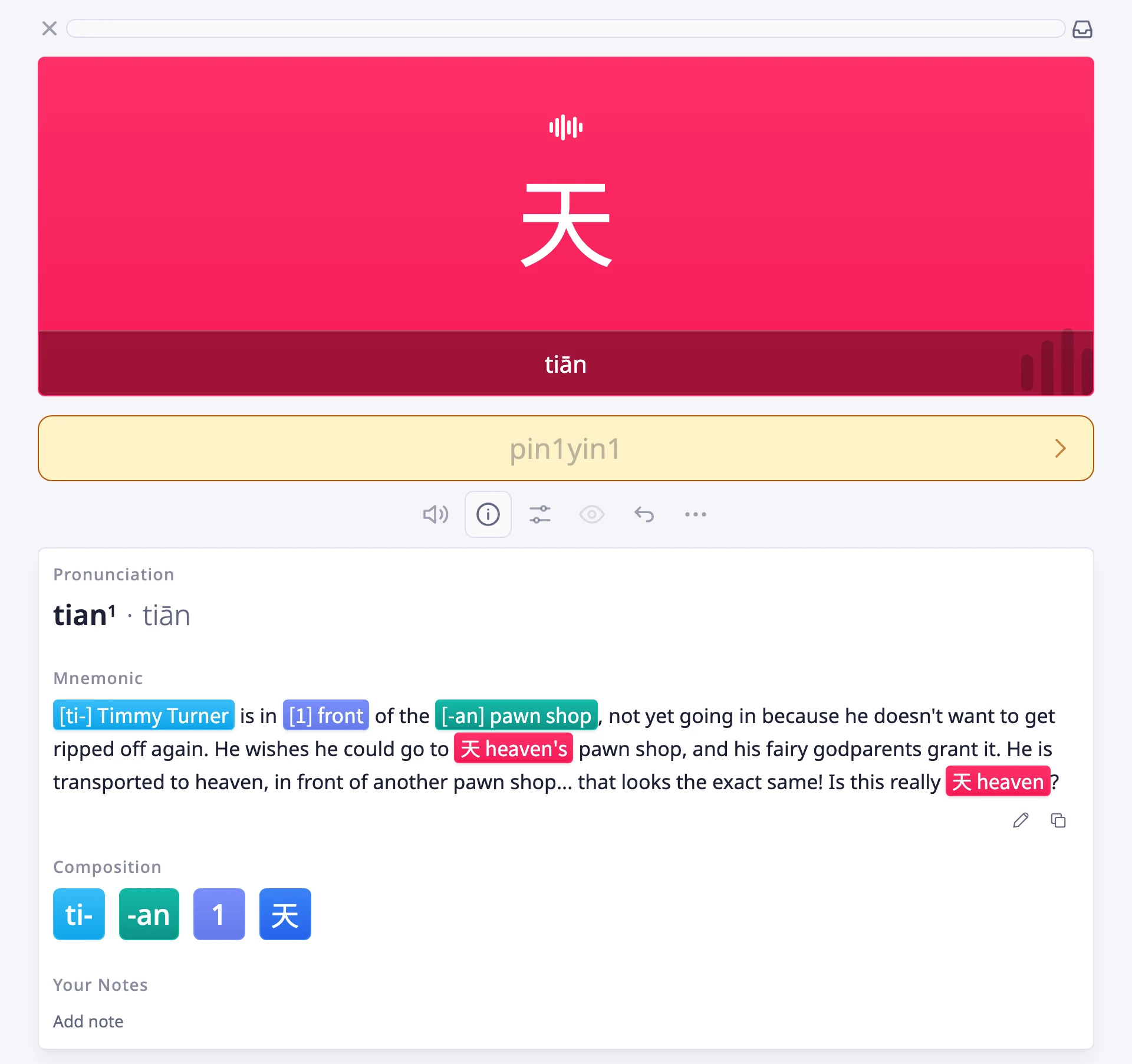
The Reveal answer button shows the answer and opens the item's information panel. Use it when you cannot recall an answer.
During reviews and initial practice after a lesson, revealing an unknown answer counts as a mistake and the question returns later. Within a lesson, continuing lets you retry the question immediately. If you've already typed an accepted answer, revealing checks it as correct instead.
Undoing and redoing an answer
During reviews and initial practice after a lesson, Undo answer takes back the current question's result. Undoing an incorrect or revealed answer removes that mistake; it does not mark the question correct. Undoing a correct answer makes the question unfinished again.
Once an answer has been shown, undoing it does not let you type a replacement immediately. The field stays locked, and the question returns later for another attempt. This gives you another chance to recall the answer rather than copy what you've just seen.
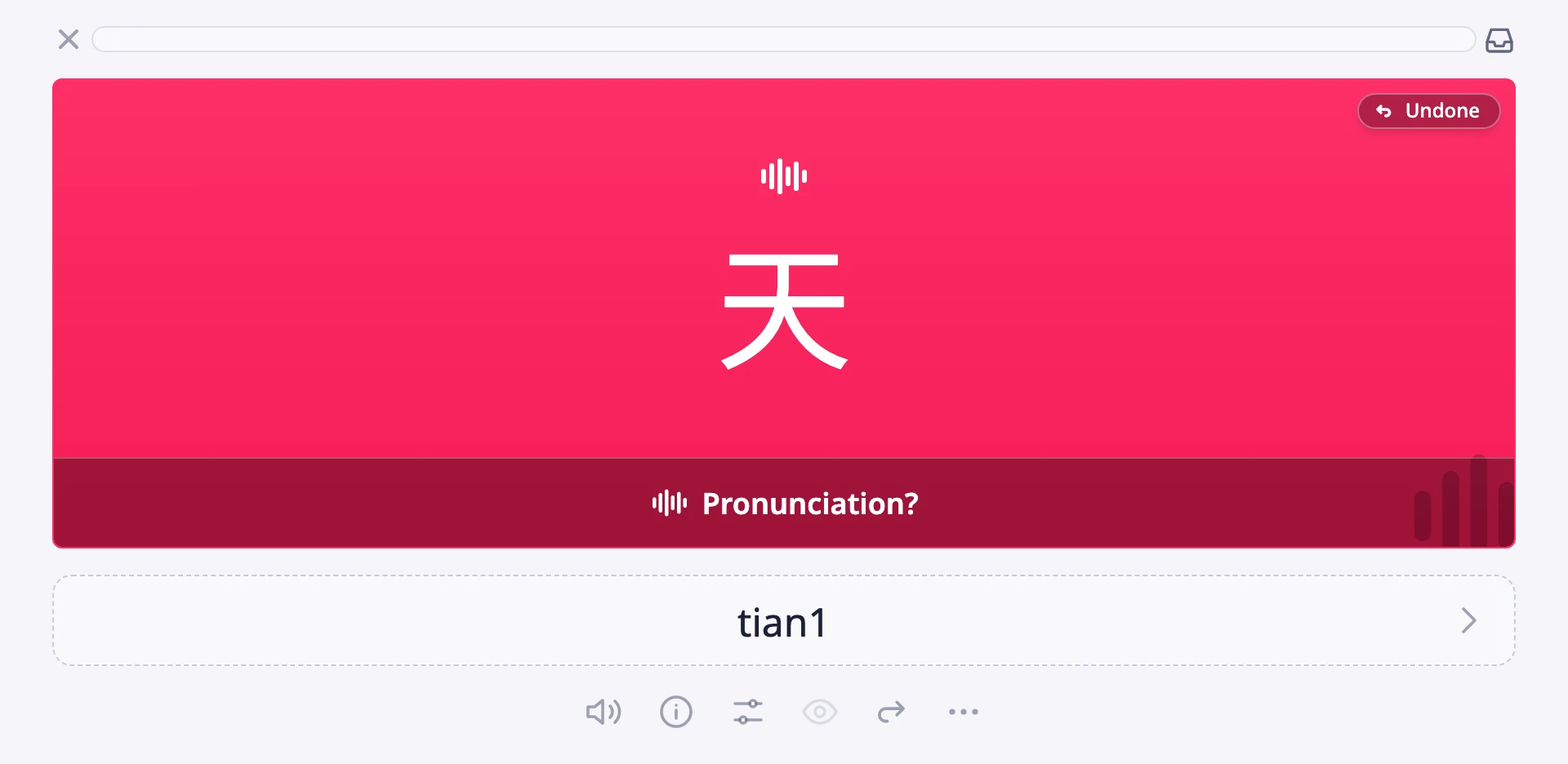
After an undo, Redo answer replaces the Undo control. It restores the previous result, including any mistake that was taken back. These controls are not available for the checks within a lesson.
Session controls
You can check your progress, revisit item information, and adjust your study experience using the session controls.
Progress and the session menu
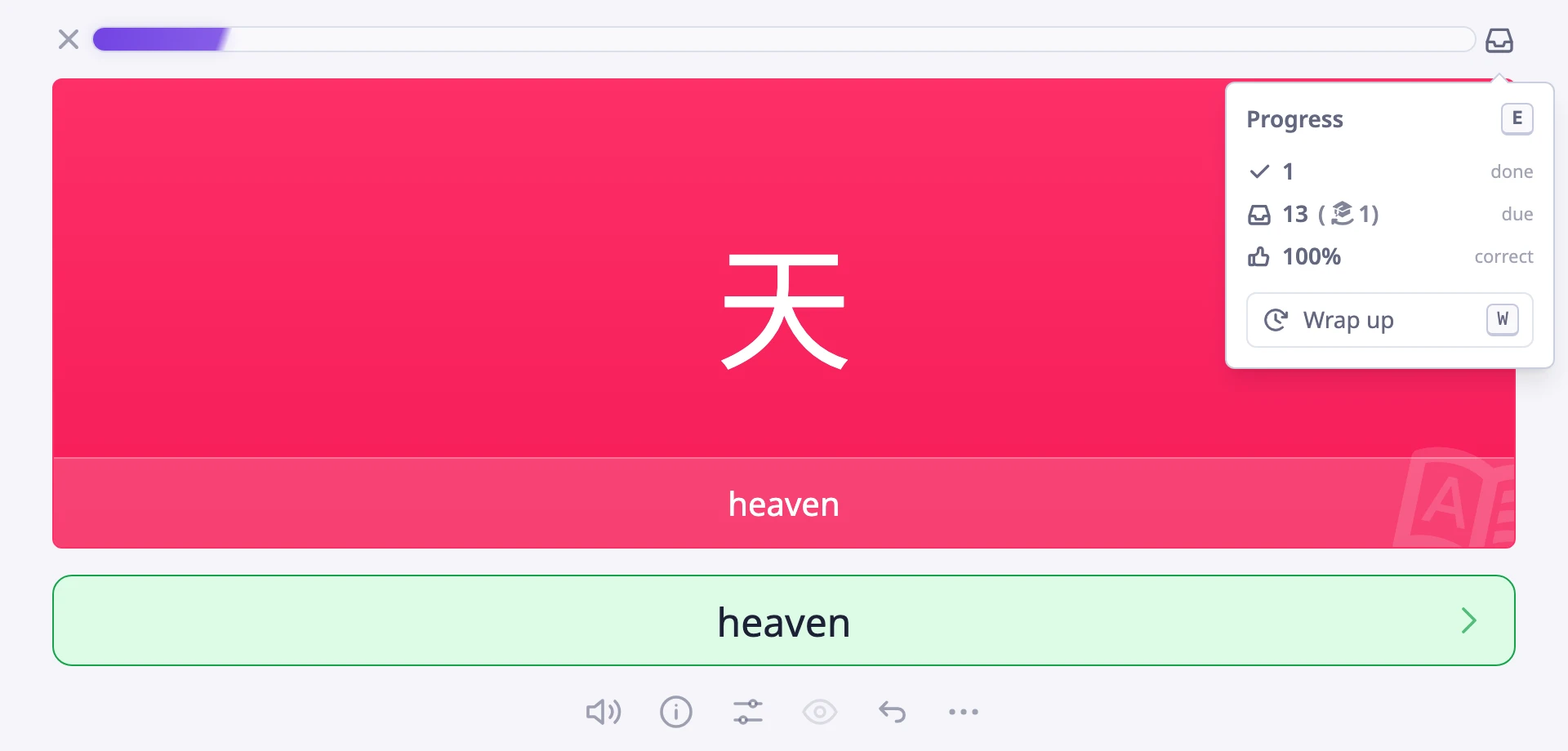
During a lesson, the step indicator at the top shows how far through the lesson you are. During reviews, the progress bar fills for each group of up to ten items, then starts again for the next group. Gems beneath the bar mark completed groups.
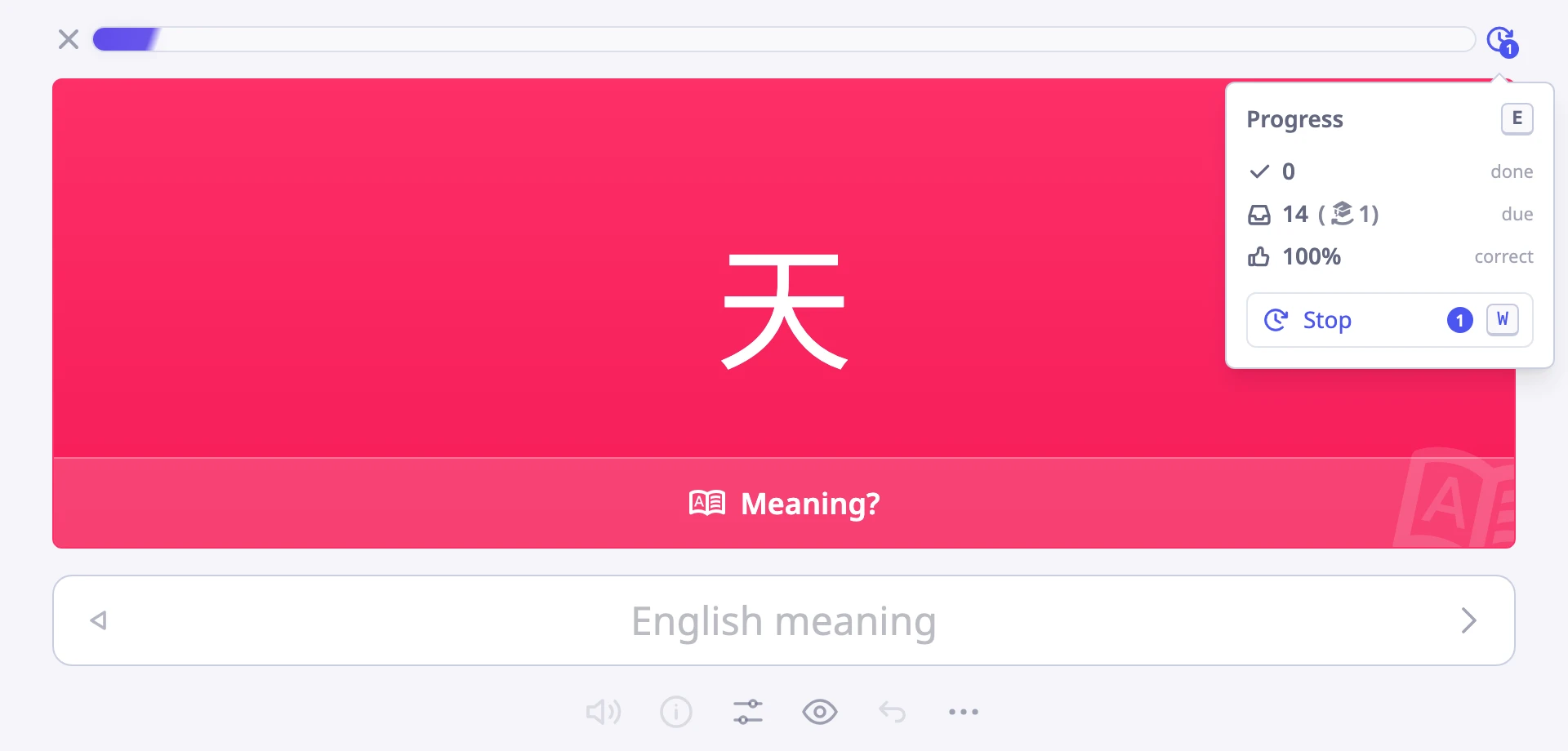
The Session button at the top right opens the session menu. Its Progress panel shows:
- done: items whose questions you've completed.
- due: items with questions still to complete, including items in Learning.
- lessons: lessons still to be introduced, when any remain.
- correct: your answer accuracy as a percentage.
The Learning count beside due shows how many of those items are newly introduced items awaiting initial practice. During reviews, the menu also provides Wrap up to finish the items you've already started.
Item information
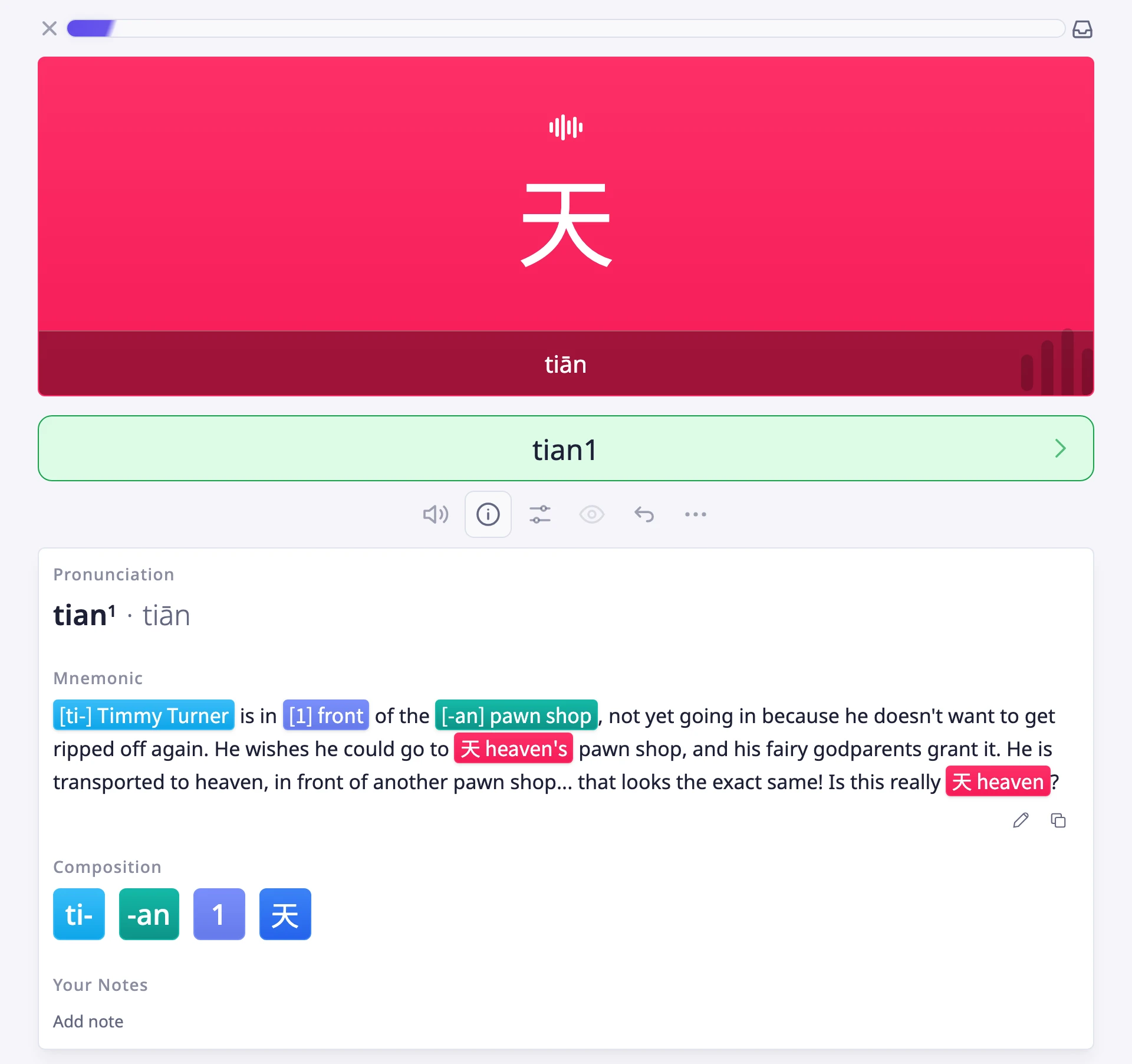
Once an answer has been shown, the Details button opens a panel beneath the answer controls. Depending on the item and question, it shows the answer and alternatives, mnemonic, composition, example sentences, and your notes. Click Details again to close it.
Editing mnemonics, accepted answers, and notes
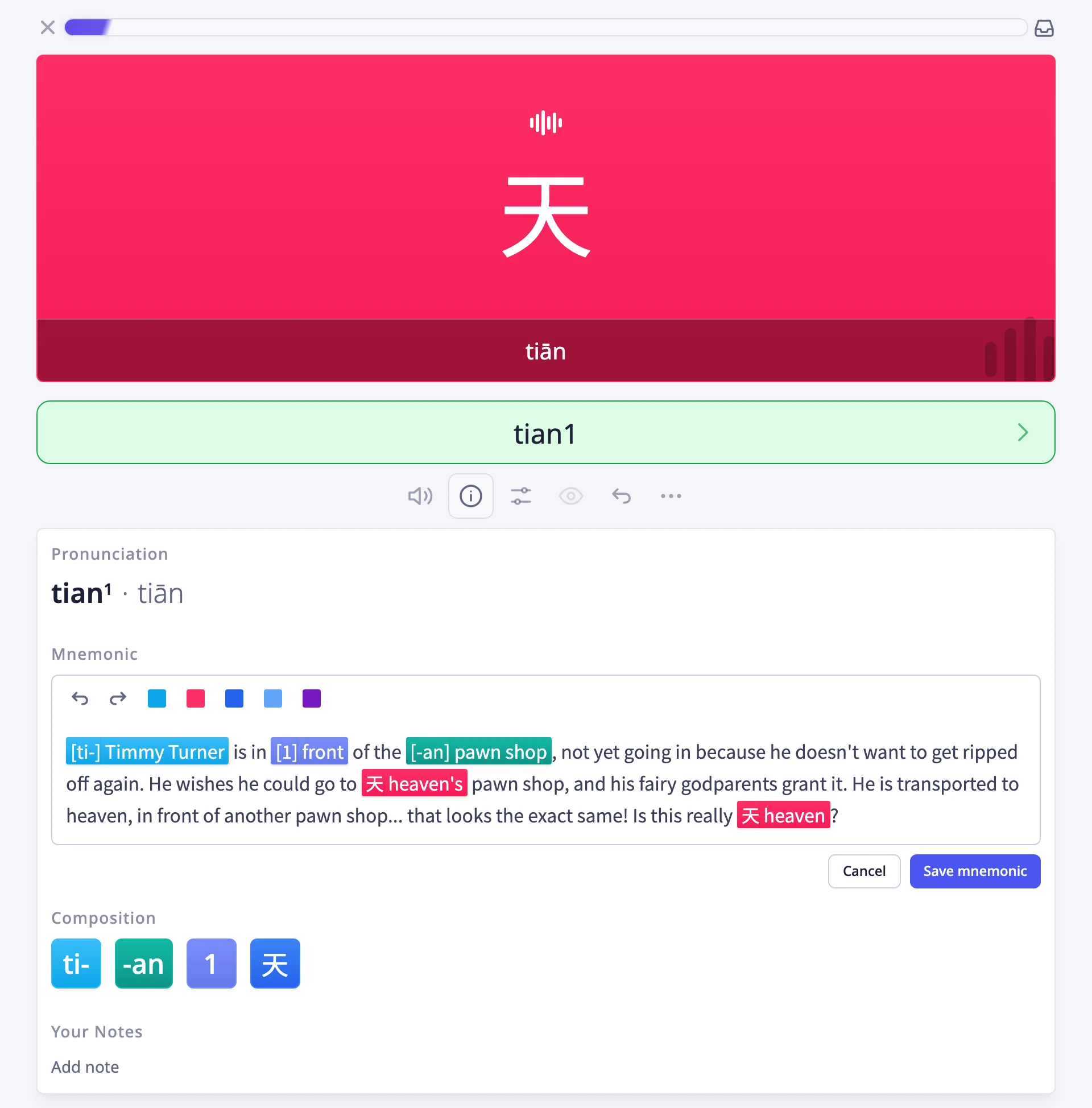
Lessons and the Details panel include editing controls for the item being shown. The available controls depend on the item and question:
- Mnemonics: Edit mnemonic opens the editor. Change the story, then click Save mnemonic. The reference controls let you insert highlighted item references into the story.
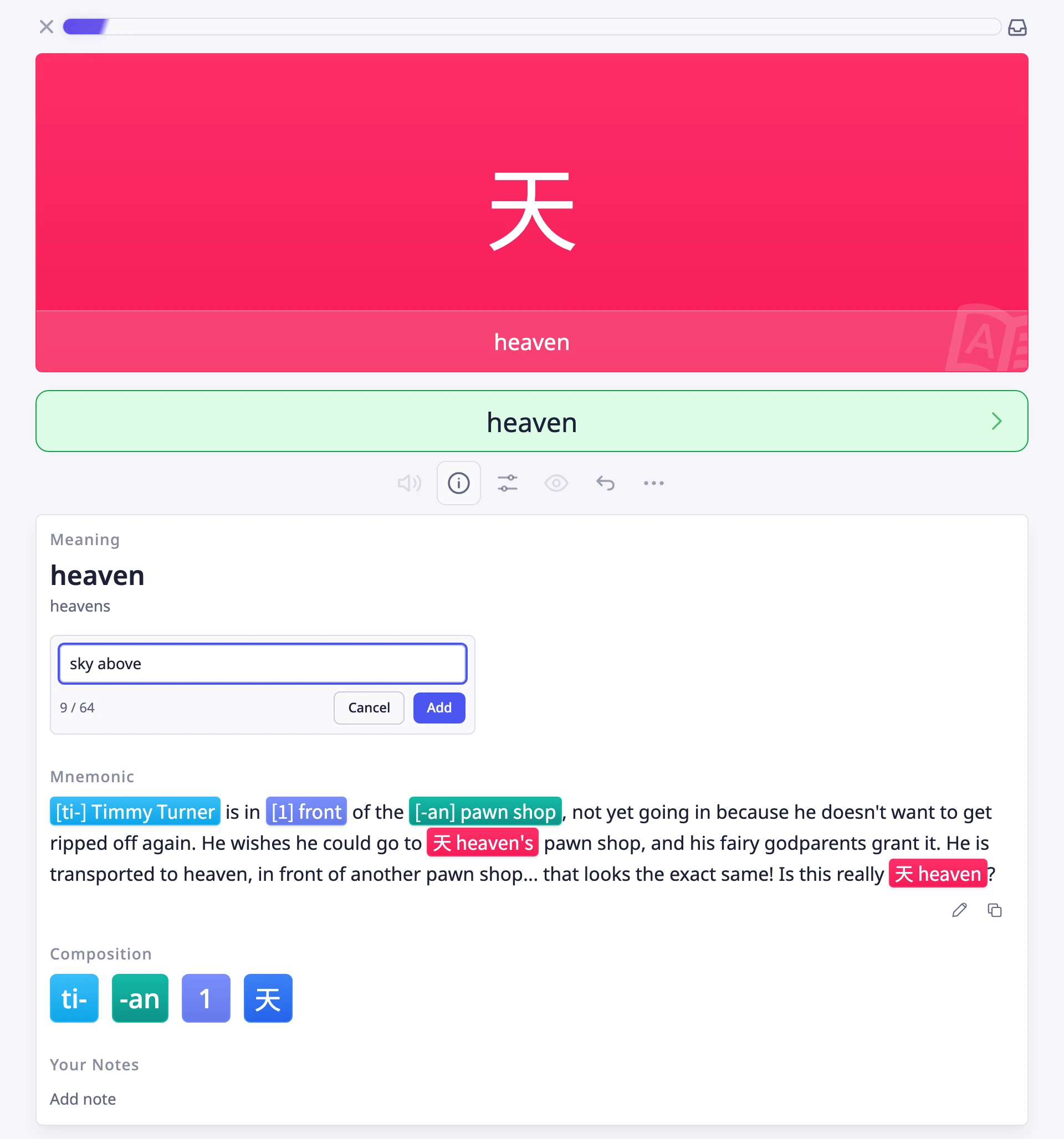
- Accepted answers: Add synonym adds another accepted meaning or component name, while Add alias adds another accepted sound association. Enter the answer and click Add.
- Dictionary answers: Add definition adds an accepted meaning. Add pinyin, available in the pronunciation information panel, adds an accepted pronunciation. You can also choose a primary definition using the bullet beside a definition.
- Notes: Add note or Edit note opens the notes field. Click Save notes to save your changes.
Playing audio
Lesson cards with a speaker icon play their pronunciation when clicked. During questions, the Play pronunciation button beneath the answer field replays the audio once the answer has been shown. For a meaning question, it becomes available after the item's pronunciation question is complete.
The Preferred Audio Voice setting determines which voice plays. Automatic pronunciation playback can be turned on or off in Quiz settings; the playback controls still let you listen when you choose.
Skipping an item
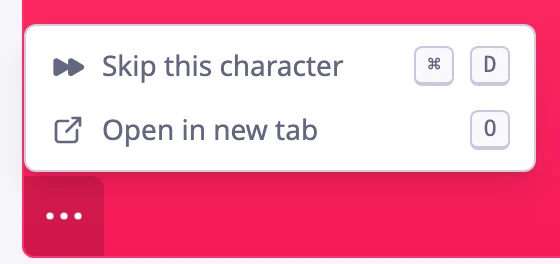
The skip action appears in More actions, the three-dot menu on lesson cards or beneath the answer field. On a lesson card, choosing Skip opens a confirmation dialog.
Skipping marks the item as skipped in your account and removes it from future lessons and reviews. On a component or sound screen within a character lesson, the action skips that component or sound and the character lesson continues. To resume studying a skipped item, choose Unskip from its actions dropdown on its detail page or tile.
Opening an item's detail page
In More actions, Open in new tab opens the detail page for the item currently shown. On a component or sound lesson screen, it opens that component or sound's page. During questions, the action becomes available once the answer has been shown.
Quiz settings
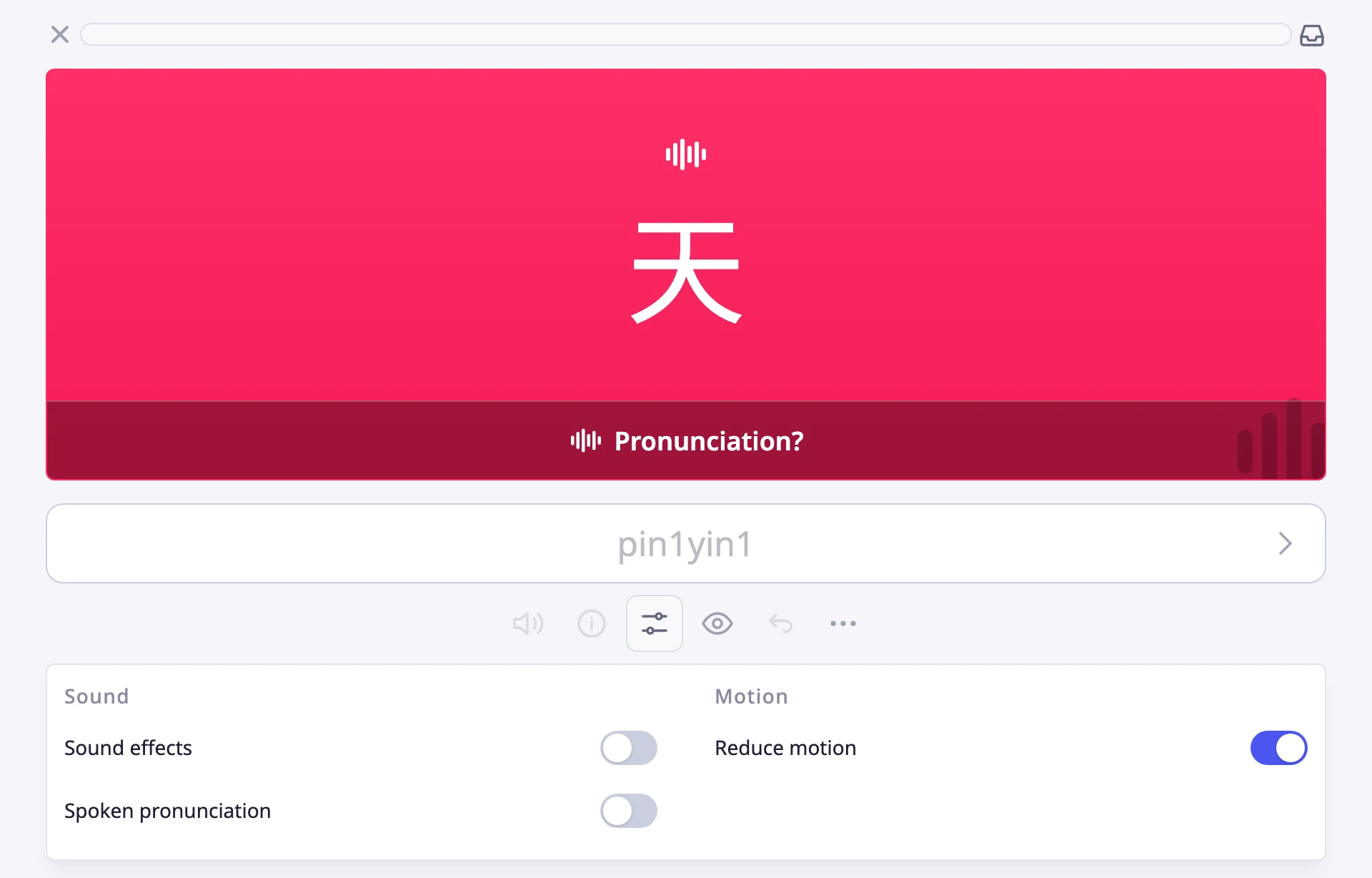
The Quiz settings button beneath the answer field opens a panel with three switches:
- Sound effects: plays feedback sounds when answering and completing groups.
- Spoken pronunciation: plays pronunciations automatically during lessons and after correct pronunciation answers.
- Reduce motion: reduces animations while studying.
Changes take effect immediately and are saved automatically for future sessions. Click Quiz settings again to close the panel.
Finishing or leaving a session
When you've completed the available material, Study opens the session summary. You can also wrap up when you're ready to stop and return to the remaining material later.
Wrapping up
During reviews, open the Session menu and choose Wrap up. The session then focuses on finishing items already in progress, including initial practice for new items introduced during the session. Once those questions are complete, the session summary opens.
While wrapping up, the Session button changes from to and shows how many active items still have questions to complete. To carry on with the normal session instead, open the menu and choose Stop.
Saving progress
Progress is saved automatically as you study. A lesson's introduction is saved when you reach its recap screen. Review results are saved for completed items, once all of their questions have been answered. Answers for an unfinished item aren't saved individually, so Wrap up is useful for finishing those items before leaving.
If your connection is interrupted, keep the page open while Study reconnects and saves your results. Closing or reloading the page before saving finishes can lose unsaved progress.
Leaving and returning
The Exit to dashboard button at the top left returns to the Dashboard. Open Study again when you're ready to continue with the remaining material.
A lesson left before its recap starts again when it next appears. Items already introduced but awaiting initial practice remain in Learning, while unfinished scheduled reviews remain due.
Session summary
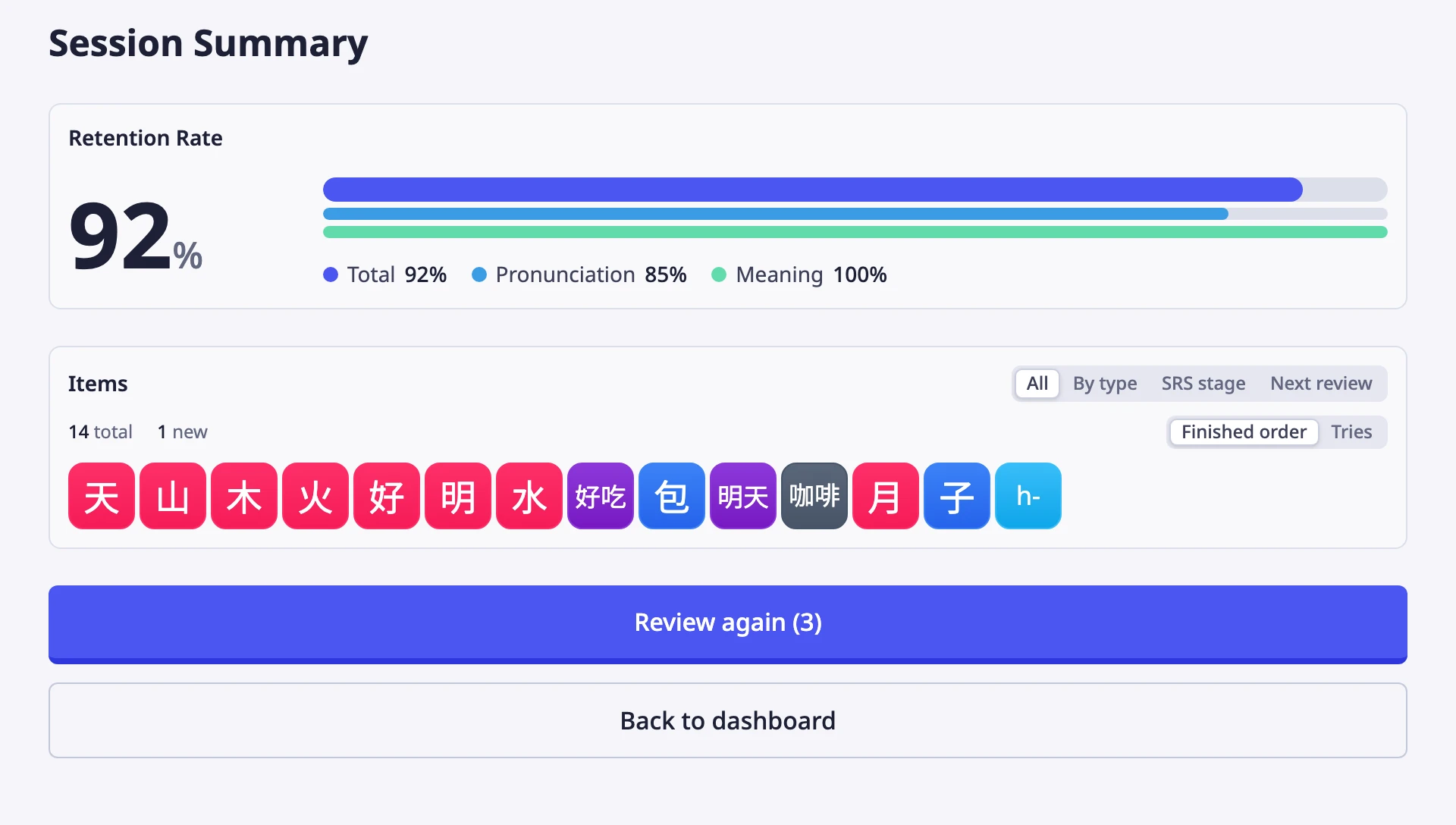
The Session Summary shows the items you've completed and how your answers went. The controls above the item tiles arrange them in different ways so you can explore the results.
Accuracy and completed items
Retention Rate summarizes your answer accuracy for the completed items, with separate figures for Total, Pronunciation, and Meaning when applicable. Mistakes lower the rate even if you later answer correctly. Hover over or focus a legend entry to highlight its bar.
The Items area shows one tile for each completed item, including new items whose initial practice is finished. Hover over or tap a tile to open its item card.
In the All view, total shows the number of completed items and new shows how many completed their initial practice. Finished order arranges them in the order they were completed. Tries groups them into First try, 2 tries, and 3+ tries based on the mistakes made across each item's questions. The By type view groups the same items by item type.
SRS stages and next reviews
The SRS stage view groups items by their SRS stage. Before shows where they started the session, while After shows the resulting stages. Newly learned items start without a stage and appear in a separate column in the Before view.
The All, Promoted, and Demoted controls show all completed items or just those that moved up or down a stage.
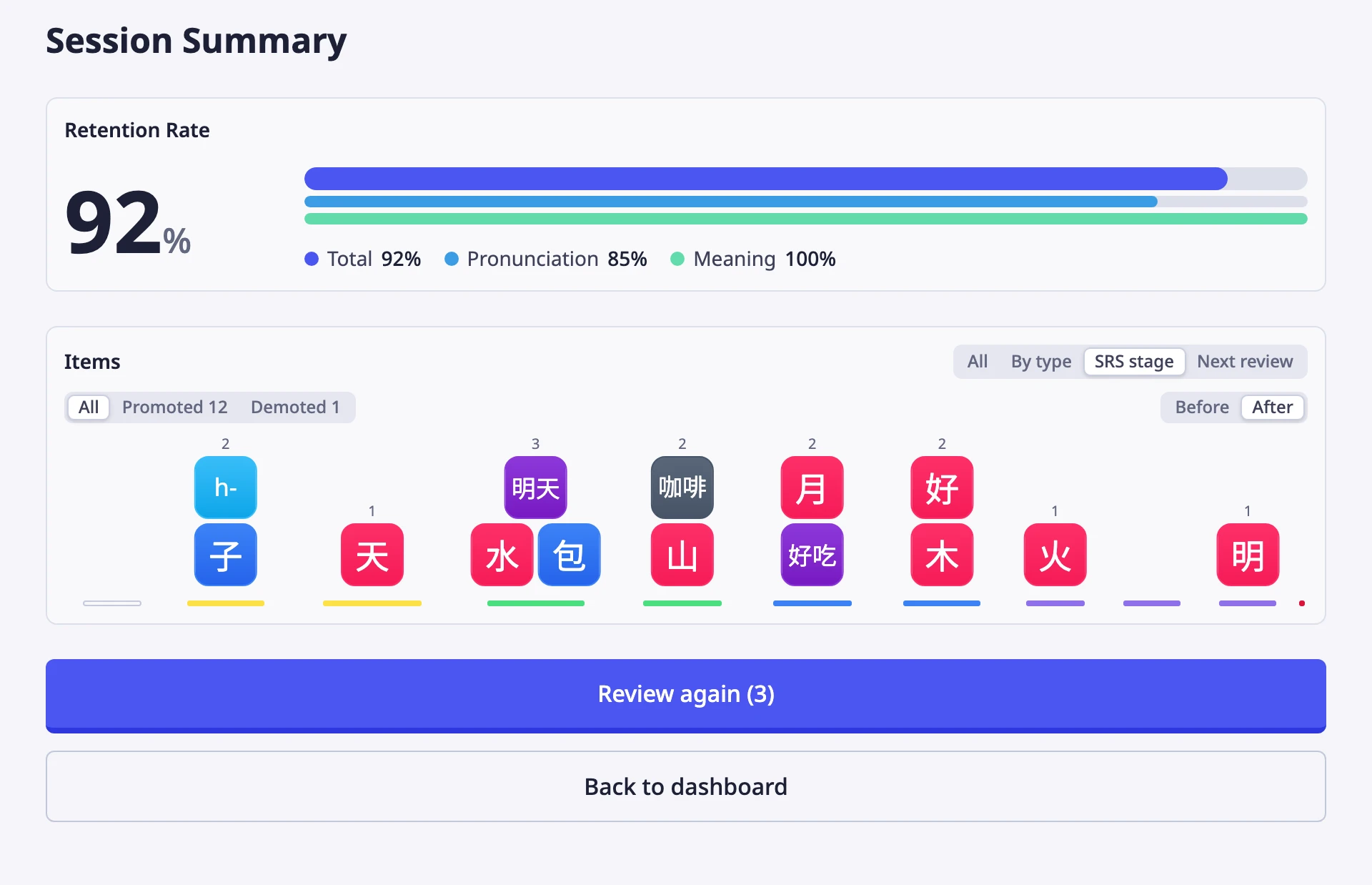
The Next review view groups items by their calculated review intervals, using ranges such as Tomorrow, 2–3 days, and 4–7 days. See Review intervals for how those intervals are determined.
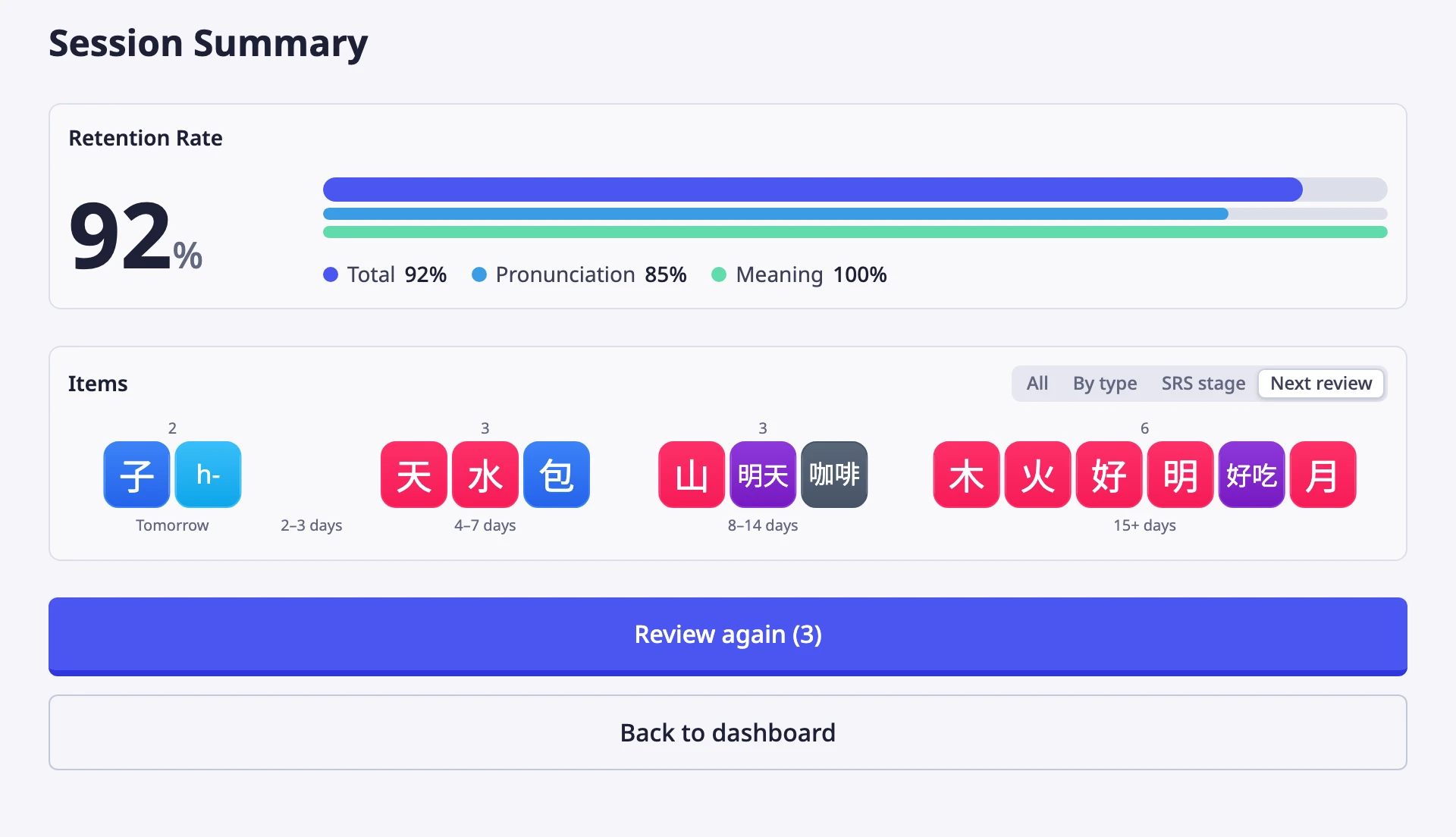
Reviewing mistakes again
When the session includes items you missed or newly learned items, Review again starts extra study with those items. The number on the button shows how many items will be included. Hover over or focus the button to highlight those items in the summary.
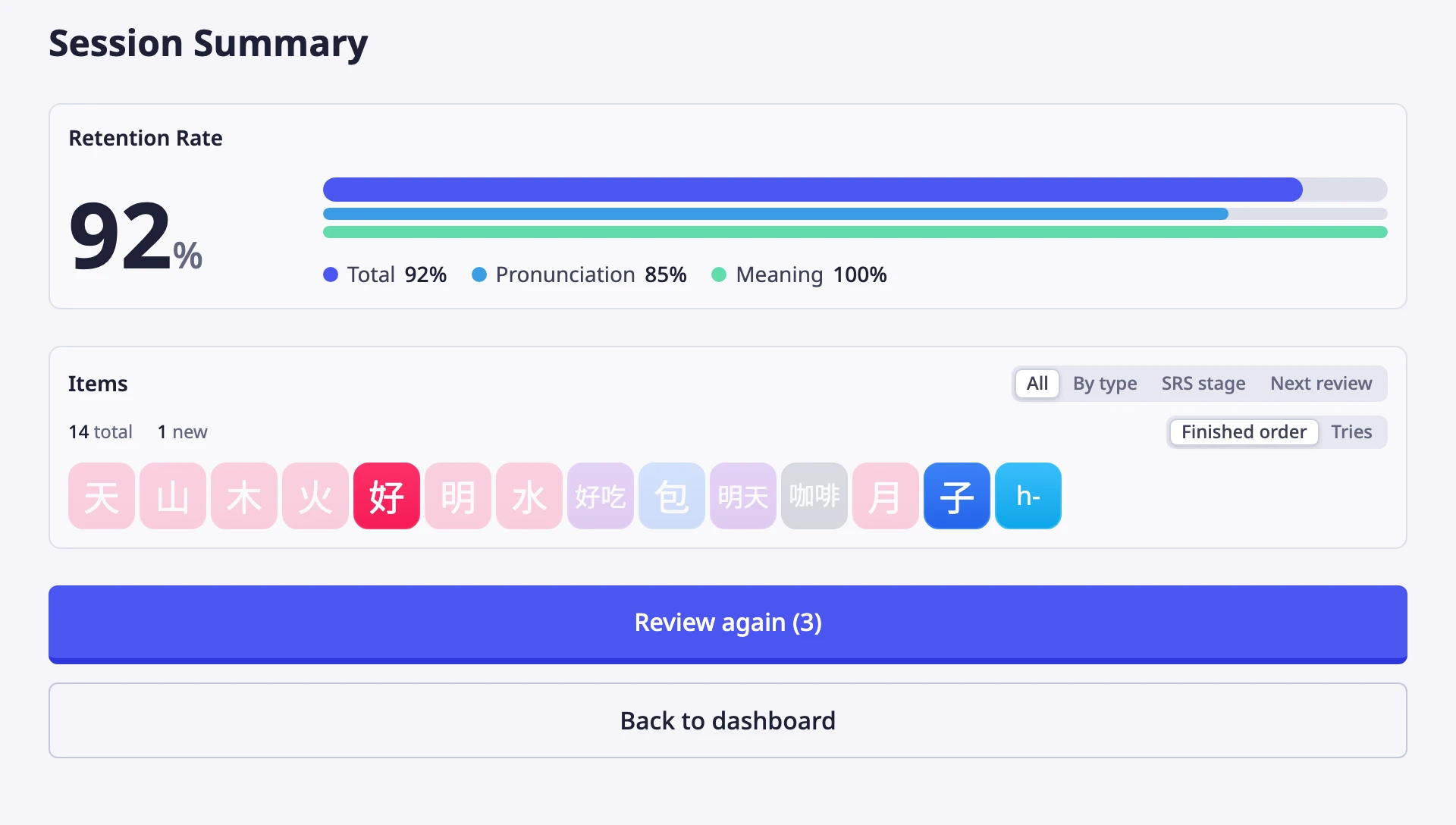
This is additional practice: it does not change SRS stages, review dates, or review history.
Back to dashboard returns to the Dashboard when you're finished.
Extra study
Extra study provides additional practice with items you've already been introduced to, whether or not they are due for review. It uses the same question types and answer formats as regular Study.
Starting extra study
You can start extra study from:
- Dashboard: in the Extra Study panel, click Review under Recent Mistakes or Recently Learned. Select the items you want to practice, then click Launch.
- Session summary: Review again starts practice with the session's missed and newly learned items. See Reviewing mistakes again.
- Lists: the Study list button starts practice with the list's learned items. See Studying learned items for which items are included.
How extra study differs
Your answers leave the items' SRS stages, next review dates, and review history unchanged. Scheduled reviews and unfinished initial practice still need to be completed in regular Study. See Extra study and review scheduling for more about its effect on your schedule.
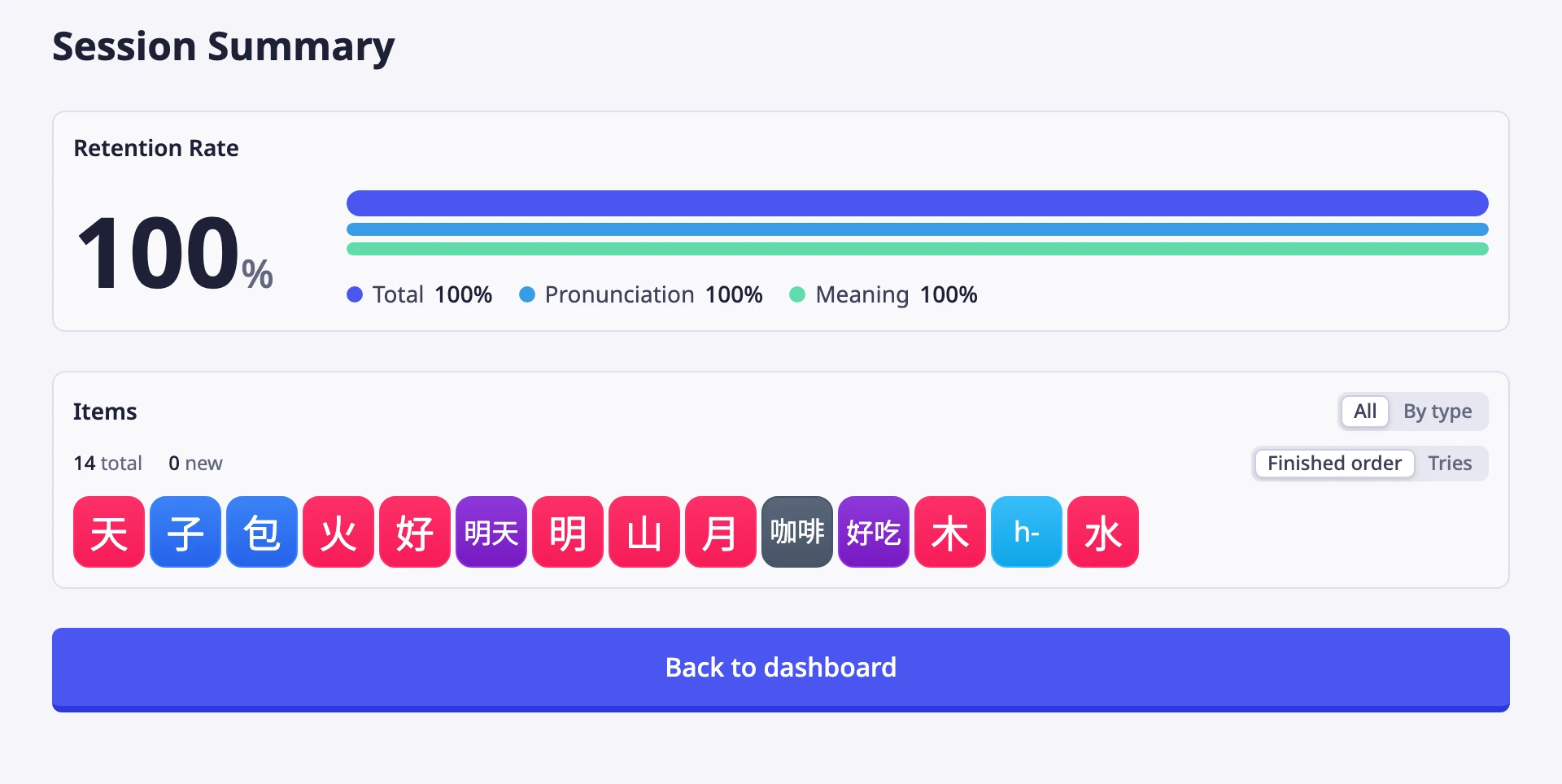
The session ends with a summary of your accuracy and completed items, with All and By type views for exploring the results.
Keyboard shortcuts
Ctrl/Cmd means Ctrl on Windows/Linux or Command (⌘) on Mac. Shortcuts work when the corresponding control is available. Single-key shortcuts apply when you're not typing in an editable field.
| Shortcut | Action |
|---|---|
| Enter | Check an answer or continue to the next screen. |
| Ctrl/Cmd+Enter | Reveal answer from the answer field. |
| Ctrl/Cmd+Z | Undo answer. |
| Ctrl/Cmd+Shift+Z or Ctrl+Y | Redo answer. |
| Ctrl/Cmd+B | Go back from a question screen. |
| Ctrl/Cmd+D | Skip the current item. |
| E | Open or close the Session menu. |
| W | Start or stop Wrap up. |
| I | Open or close Details. |
| Q | Open or close Quiz settings. |
| P | Play pronunciation. |
| + | Add an accepted answer. |
| M | Edit mnemonic. |
| N | Add or edit a note. |
The skip shortcut takes effect immediately; choosing Skip from a lesson card's menu first opens a confirmation dialog.