
Priority queue
Overview
Your priority queue lets you choose which characters, words, and dictionary items you want to learn sooner. Use it to focus on vocabulary from your reading, a textbook, or topics that matter to you rather than relying only on the default lesson order.
Prioritized items are selected ahead of the default lesson order, subject to their unlocking requirements and your lesson limits. Adding an item to the queue does not immediately teach it or change its SRS progress. You learn it through lessons in Study.
You can add items individually or prioritize items from a list, then reorder or remove them as your goals change.
Adding items to your priority queue
You can prioritize characters, words, and dictionary items that you have not yet started learning and are not skipped. Components and sounds are introduced as part of learning characters rather than added to the priority queue directly.
Prioritizing a curated word also prioritizes its constituent characters so you can learn them before the word. As a result, prioritizing a word may add more than one item to your queue, depending on whether its characters have already been learned or not.
By default, prioritizing a dictionary item does not prioritize its characters. If dictionary unlocking and automatic character prioritization are both enabled in application settings, prioritizing a dictionary item also prioritizes its characters.
Prioritizing individual items
Open the three-dot actions dropdown on an item's tile or at the top right of its detail page. Choose where you want to add it:
- Prioritize to front of queue places the item before items already in the queue.
- Prioritize to back of queue places it after items already in the queue.
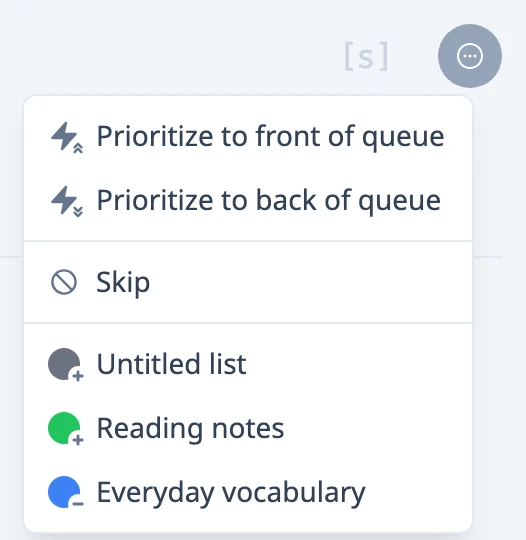
A prioritized item has a lightning-bolt icon on its tile and appears in your priority queue. You can continue browsing and add more items in the same way.
These actions choose the item's place in the priority queue; they do not bypass its unlocking requirements. For example, a prioritized word may still need to wait until its characters meet the requirements for learning it.
Prioritizing items from a list
If you have grouped vocabulary into a list, you can prioritize its items together instead of adding each one individually. Open the list's detail page and click the lightning-bolt button (Prioritize list) at the top right.
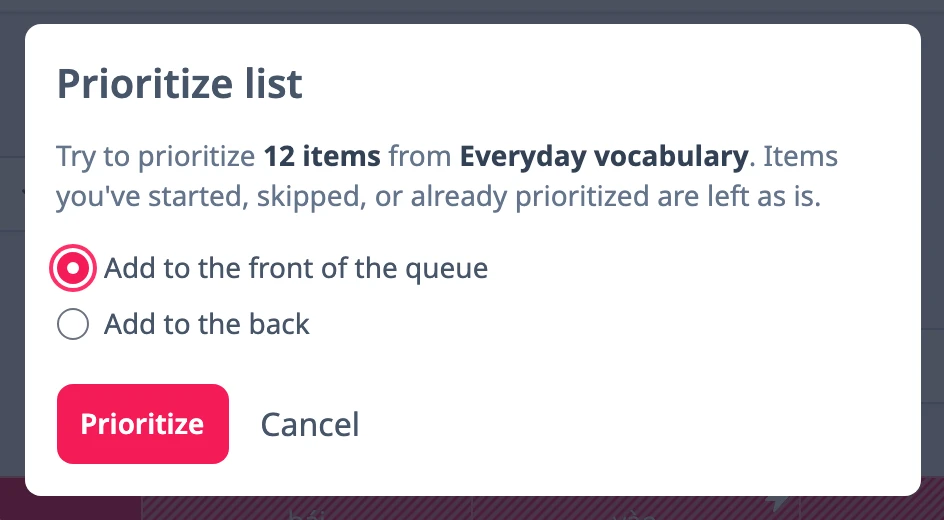
The action uses the list's current filters and sorting. Filter the list first if you only want to prioritize some of its items, and choose List Order if you want to retain the order in which you added them to the list.
Choose Add to the front of the queue or Add to the back, then click Prioritize. Items you have already started, skipped, or prioritized are left as they are. Components and sounds are not prioritized by this action.
A confirmation message shows how many items were newly prioritized. You can then open your priority queue to check their order. For more about organizing vocabulary before prioritizing it, see Lists.
Viewing your priority queue
To open your priority queue, click Priority Queue in the Curriculum dropdown.
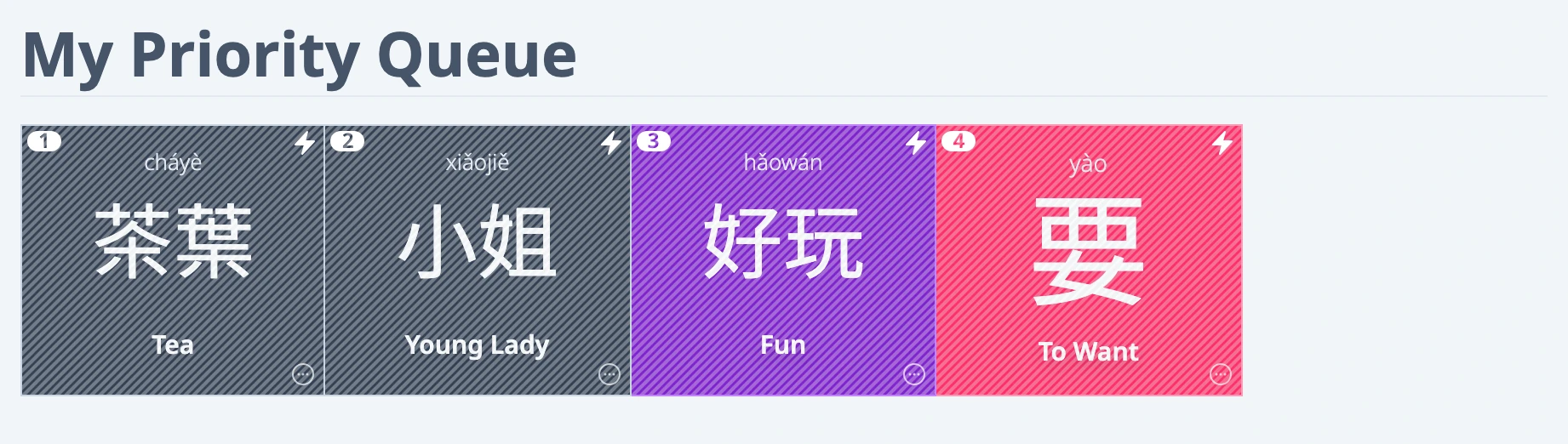
Only items you have not yet started learning and are not skipped appear here. If the queue is empty, the page shows No items in your priority queue. You can add items as you browse the curriculum or dictionary.
Queue positions
The number at the top left of each tile shows its position in the queue, starting at 1. Items are arranged from the front of the queue to the back, reading left to right across each row and then continuing on the next row.
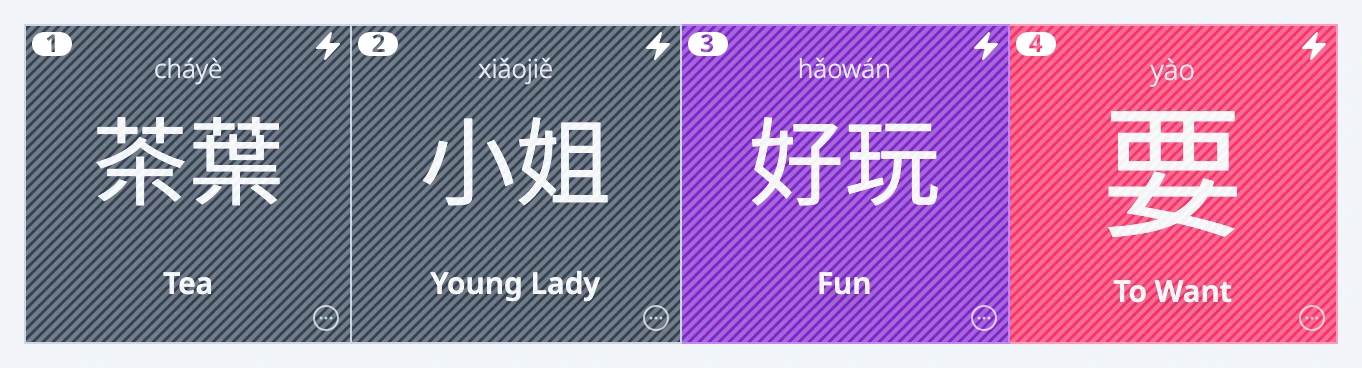
Lower numbers mean higher priority. These numbers describe the queue order, not a guaranteed sequence of lessons: an item's unlocking requirements can still affect when you learn it. See Lesson order for how prioritized items are selected for Study.
You can reorder items to change their positions. The position numbers update when you move or remove an item.
Item tiles
Each queued item appears as a tile showing its pinyin, Chinese characters, and meaning. The tile's color depends on whether it is a character, word, or dictionary item. Queued items have the diagonal pattern used for unlearned items and a lightning-bolt icon at the top right to indicate that they are prioritized. Click a tile to open its detail page.
The button at the bottom right of each tile opens the actions dropdown. Use it to move the item to the front or back, remove it from the queue, or manage its other settings, such as skipping it or adding it to a list.
Reordering items
Open the actions dropdown on a queued item's tile and choose where to move it:
- Prioritize to front of queue moves it ahead of the other queued items.
- Prioritize to back of queue moves it behind the other queued items.
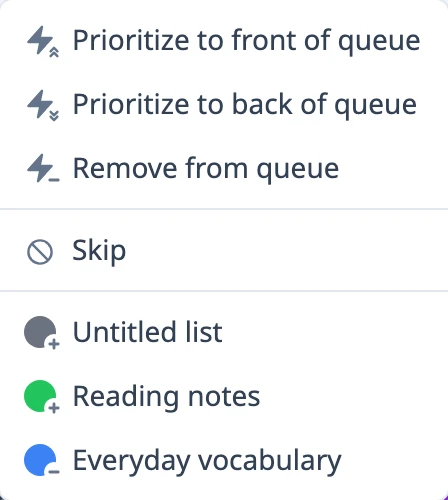
The tile moves to its new position, and the queue's position numbers update automatically. You can also use these actions from the item's detail page or wherever its tile appears.
Moving an item that is already queued only changes that item's position. It does not move its constituent characters along with it. If you want to change their positions too, move those characters individually.
Removing items
To stop prioritizing an item, open the actions dropdown on its tile or detail page and select Remove from queue.
The item disappears from the priority queue and is no longer marked with a lightning-bolt icon. Removing it does not skip it, delete its notes or customizations, or remove it from any lists.
Characters and curated words remain available through the default lesson order. Dictionary items do not enter lessons automatically, so you need to prioritize a dictionary item again if you want to learn it.
Removing a word or dictionary item does not remove any characters that were prioritized along with it. Remove those separately if you no longer want to prioritize them.
You can also select Skip if you do not want to learn the item at all for now. Skipped items do not appear in your priority queue, lessons, or reviews.
Learning prioritized items
Once you have arranged your queue, open Study to learn its items in your lessons. The priority queue is not a separate study session, and prioritizing an item does not change when your existing reviews are due.
Queued items receive priority over the default lesson order, but their unlocking requirements and your lesson limits still apply. An item at the front may therefore need to wait while you learn its prerequisites. For details about eligibility, see Unlocking requirements.
Once you start learning an item, it no longer appears in the priority queue. You do not need to remove it manually.