
Account settings
Overview
Account settings let you update your email address, email preferences, username, and password.
To open them, click the profile icon at the top right of the application, then choose Settings. Scroll to the Account Settings section beneath the application settings. Each form has its own Save button; saving one form does not save changes in the others.
For learning preferences and course settings, see Application settings. For payments and subscription changes, see Subscription and billing.
Changing your email address
In Update your email, enter your new address in Email and your existing password in Current password. Click Save.
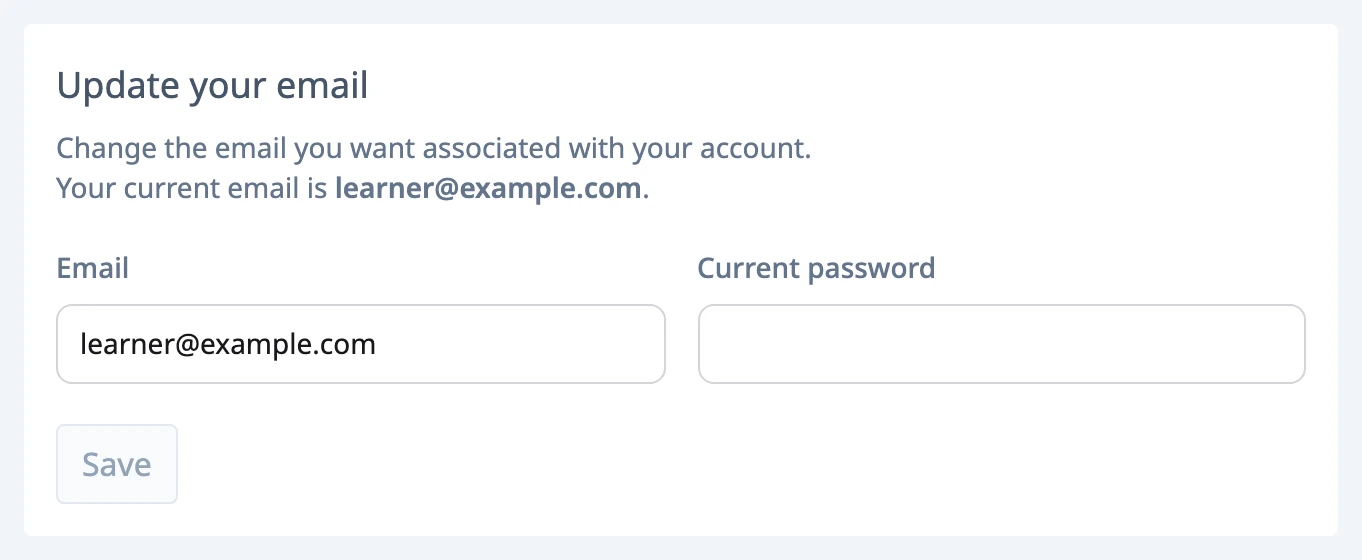
HanziHero sends a confirmation link to your new email address. Open that email and follow the link to complete the change. Your account keeps its existing email address until you confirm the new one.
If the confirmation link is invalid or has expired, return to Settings and submit the change again to request a new link. If you have forgotten your current password, reset it before changing your email address.
Email preferences
The Email preferences section lets you choose which optional emails you receive:
- Weekly progress reports summarize your study progress.
- Introductory tips and overview provide guidance to help you get started with HanziHero.
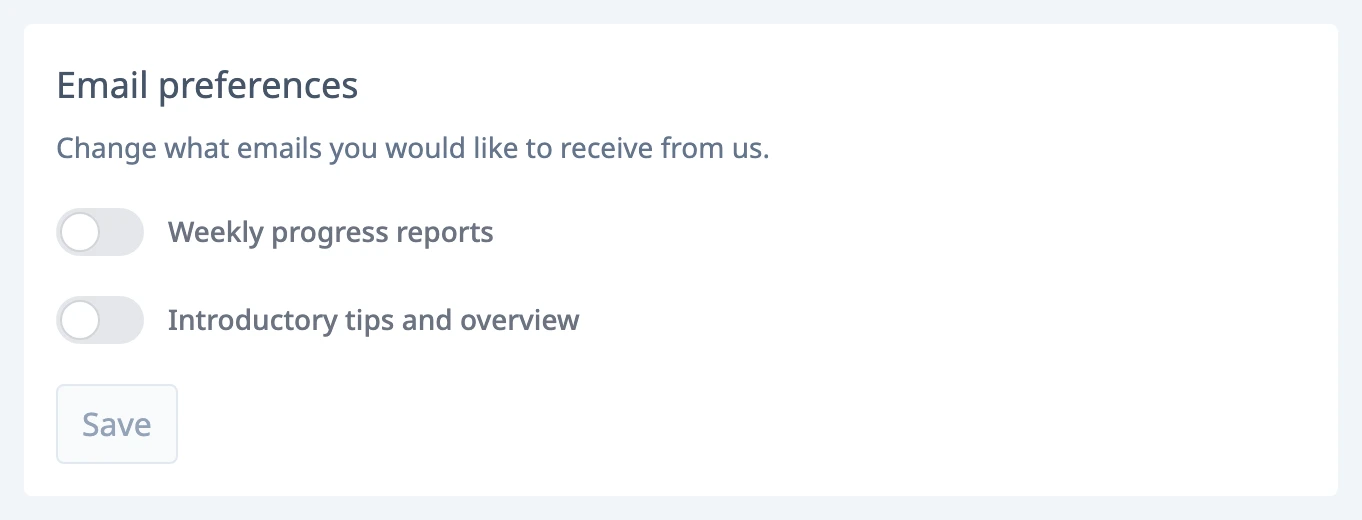
Turn each option on or off, then click Save in that section.
You can also use the email-preferences link included in these emails to manage your choices. These preferences control progress reports and introductory emails, not account-security messages such as password-reset instructions.
Changing your username
In Update your username, enter your new Username and your Current password, then click Save. Your current username is shown above the form.
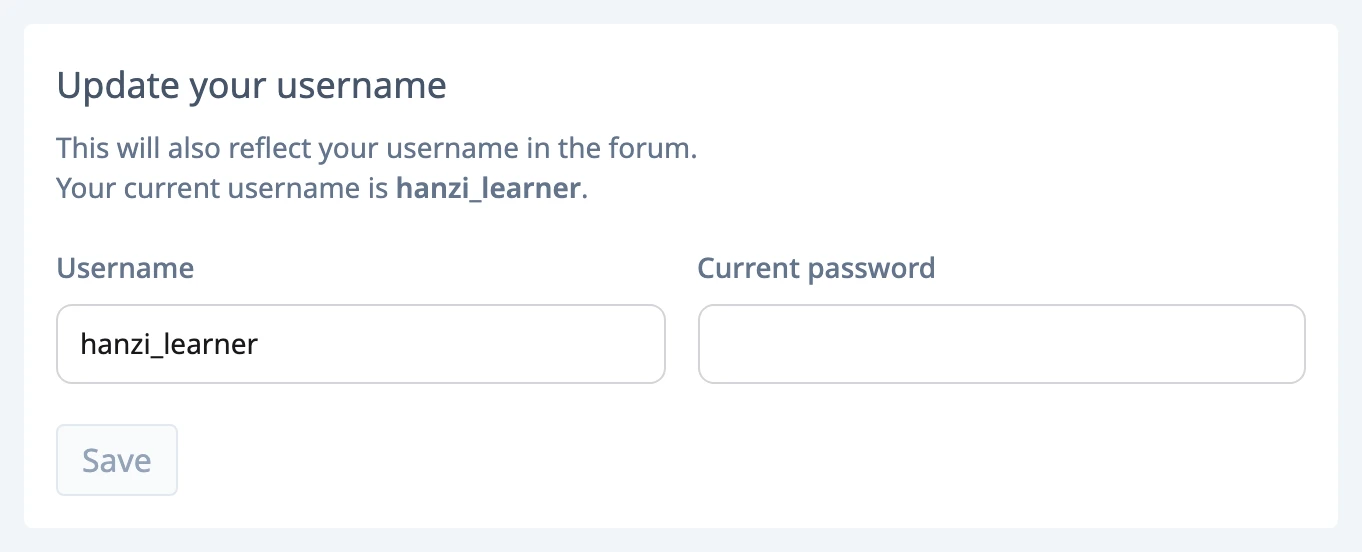
Usernames must be unique and between 3 and 20 characters long. Use letters, numbers, hyphens, or underscores, and begin and end with a letter or number. Do not place hyphens or underscores next to each other.
Your updated username is also synchronized with the HanziHero community forum.
Managing your password
If you know your current password, you can change it in Settings. If you have forgotten it, request a reset link from the login page instead.
Changing your password
In Change your password, fill in:
- New password with the password you want to use.
- Confirm new password with the same new password.
- Current password with your existing password.
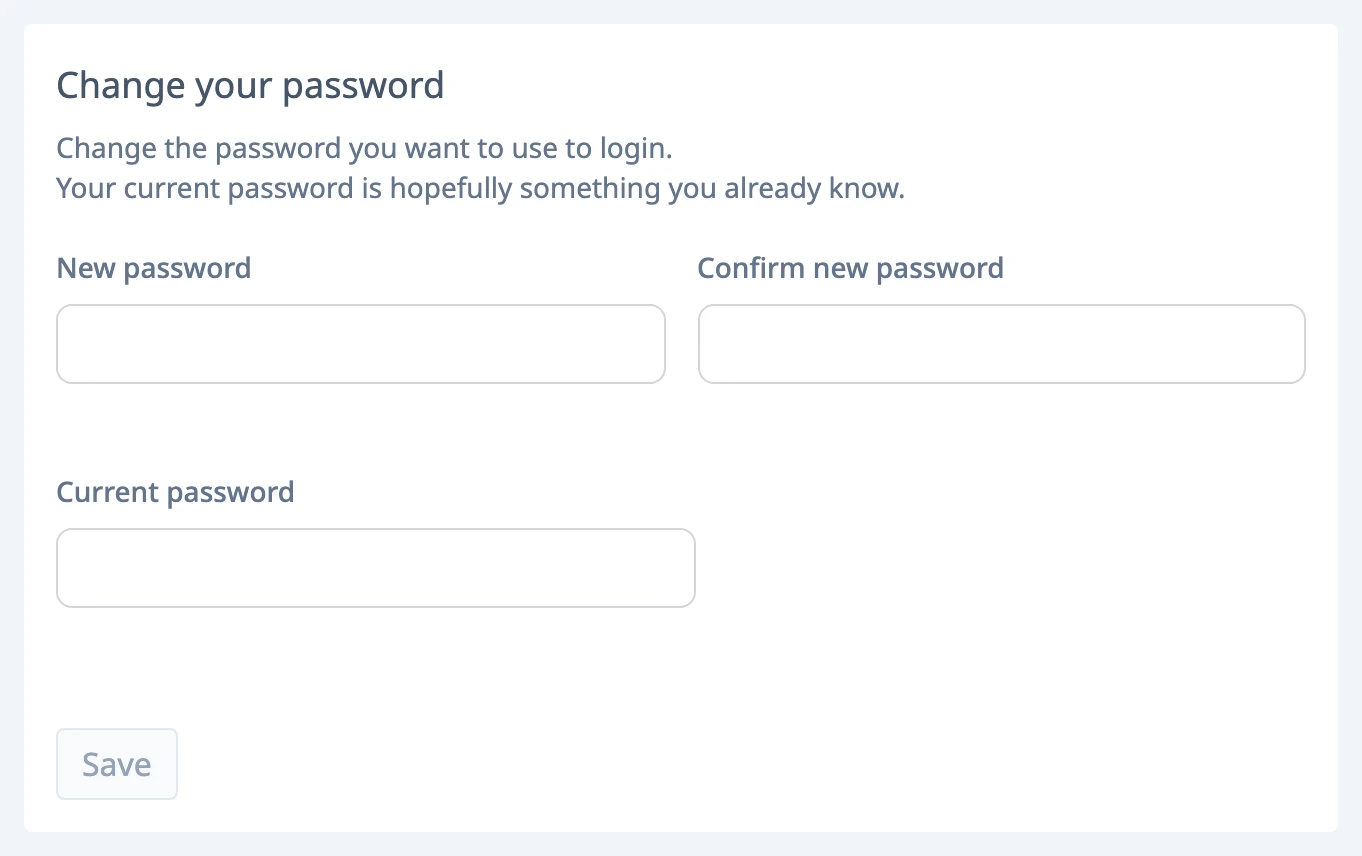
Click Save in that section. Your new password must be at least 12 characters long. Use a unique password that you do not use for another service.
Resetting a forgotten password
On the login page, click Forgot your password? Enter the email address associated with your account, then click Send password reset instructions.
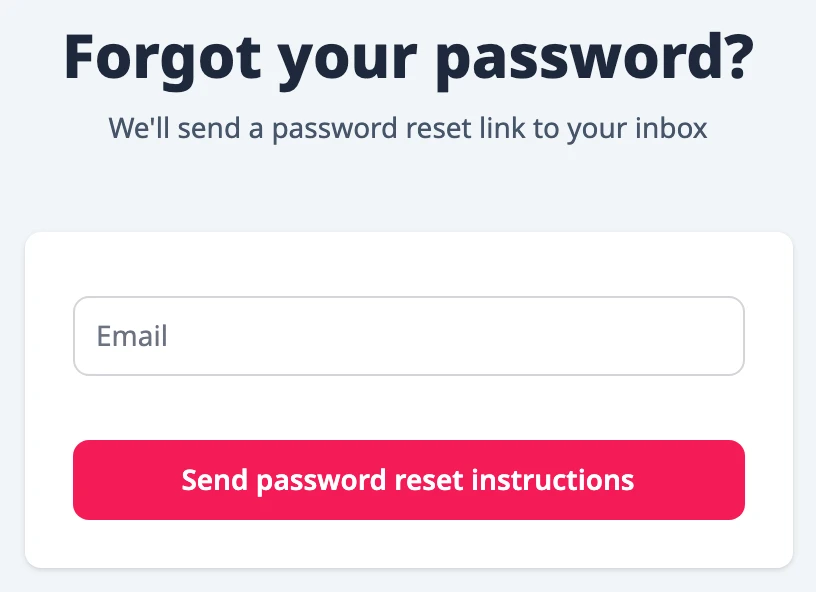
If the address belongs to an account, HanziHero sends a password-reset link to its inbox. Check your spam folder if you do not see it.
Open the link and fill in New password and Confirm new password, then click Reset Password. You do not need your old password to complete this form. After the reset, return to the login page and sign in with your new password.
If the reset link is invalid or has expired, request a new one from the login page.
Deleting your account
Deleting your account permanently removes your account and all associated study data, including your progress, review history, notes, and synonyms. Forum posts remain but are anonymized, as described in the Terms of Service.
If you have a subscription that has not been canceled, cancel it first. If you have a Lifetime subscription, contact us for help before deleting your account.
The deletion controls are under Danger Zone in the application-settings portion of the Settings page, above Account Settings. In Delete account, click Delete account to open the confirmation dialog.
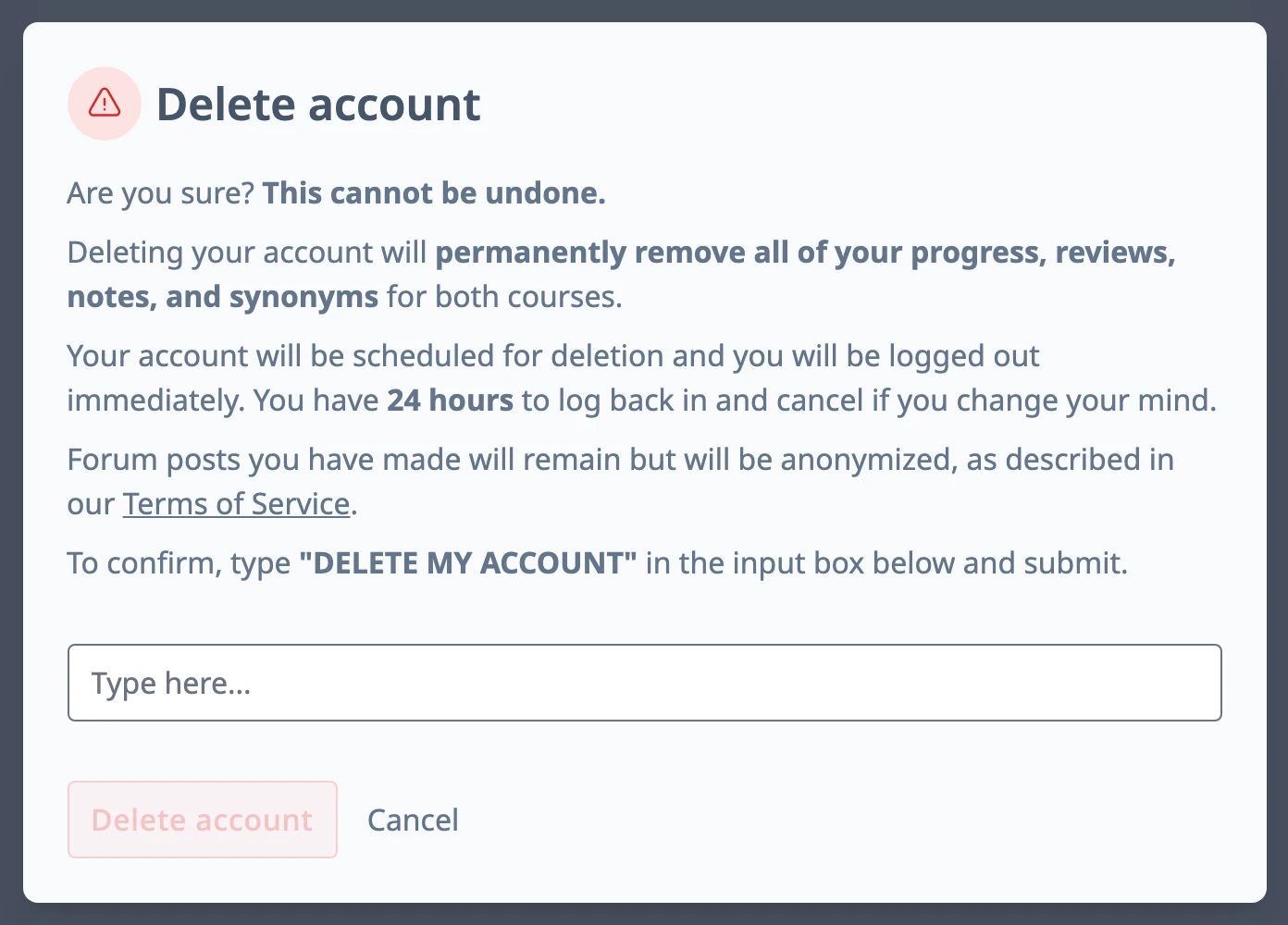
Read the warning, then type DELETE MY ACCOUNT exactly as shown and click Delete account to confirm. Click Cancel to close the dialog without scheduling deletion.
Confirming schedules your account for deletion and logs you out immediately. You have 24 hours to log back in and cancel the scheduled deletion. After the account is deleted, the deletion cannot be undone.