Dashboard
Overview
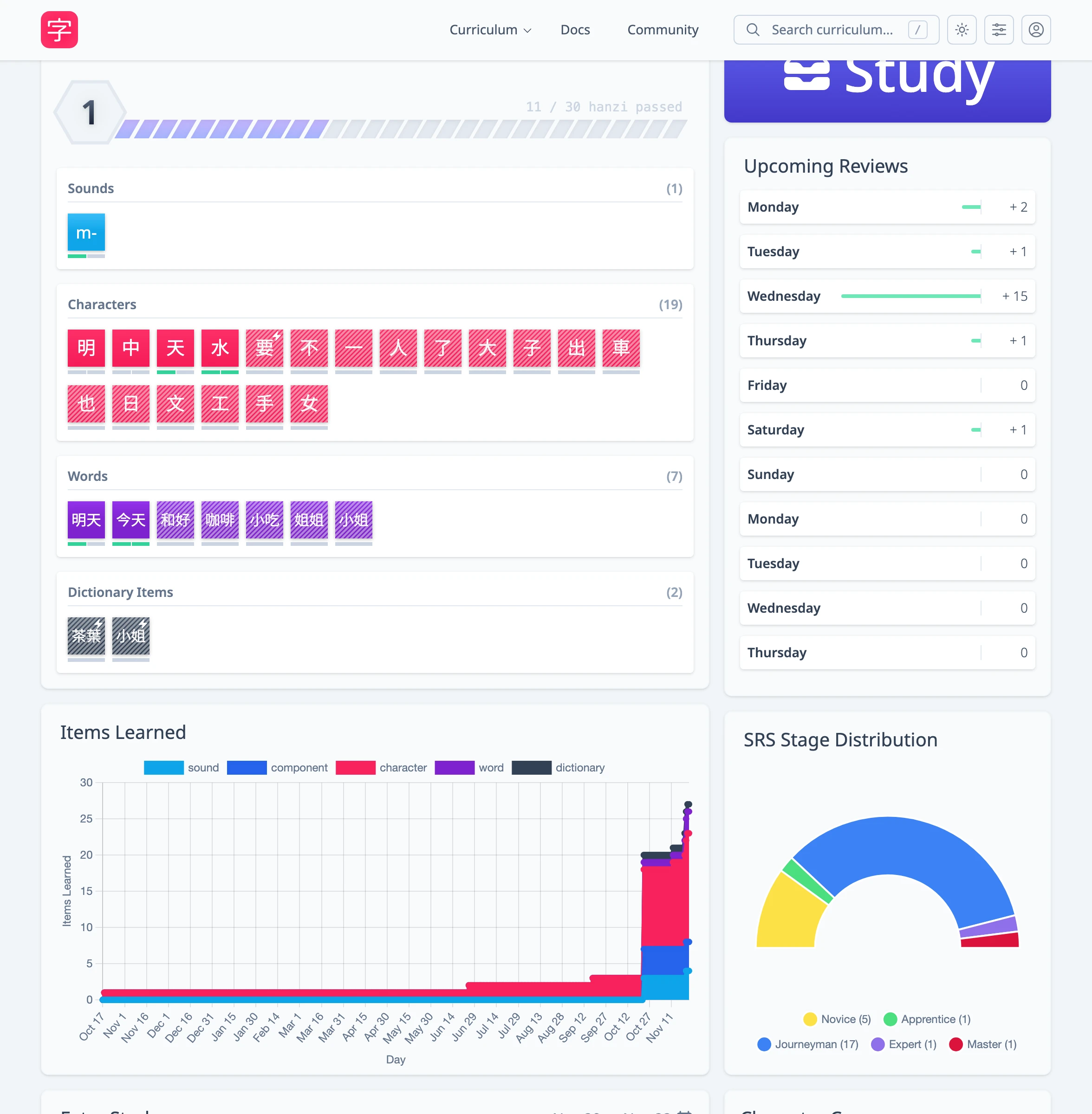
The Dashboard is your starting point for studying in HanziHero. From here, you can launch Study sessions, check upcoming reviews, see your learning progress, and choose items for extra practice.
Study button
The Study button starts a session that combines lessons and reviews. The counts on the button show the number of items currently available to study.

Lessons, Learning, and Reviews
The icons on the Study button show a count for each category with available items:
- Lessons: new items available in your lessons, including dictionary items.
- Learning: items already introduced in lessons whose initial questions you have not yet completed.
- Reviews: previously learned items available for scheduled review.
See Lessons, Learning, and Reviews for how these items fit together in a session.
Starting a session
Click Study to start a session.
The button is unavailable when there are no lessons or review questions available. If you have finished your available study for the day, you can still use Extra Study for additional practice.
Course Progress
Documentation for Course Progress coming soon. 🚧👷♂️
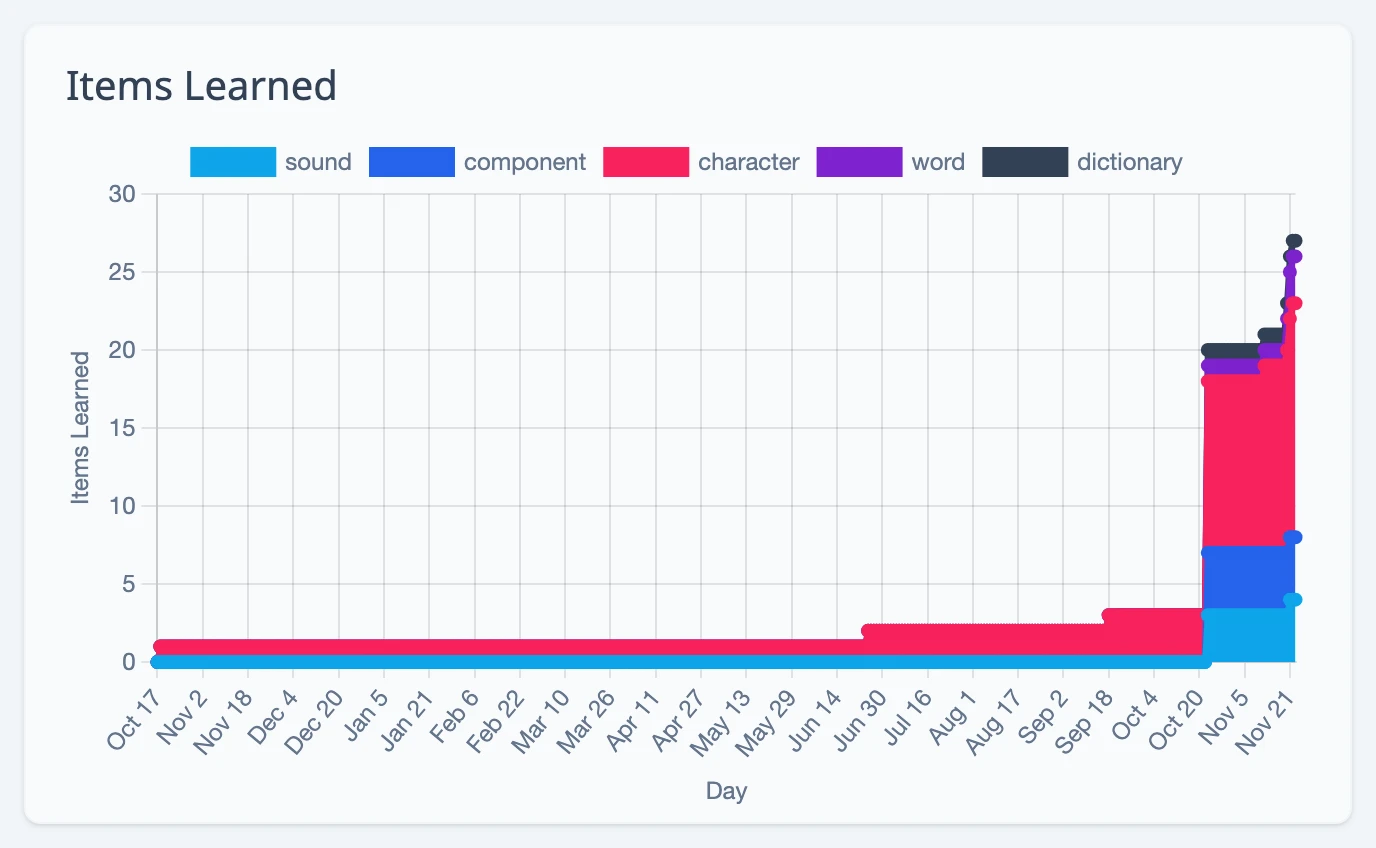
Items Learned
The Items Learned chart shows the cumulative number of items you have learned over time, grouped by item type. It shows the total number of items you have learned in each category, not the number of reviews you have completed.
Hover over the chart to see counts for a date and the total across item types. Use the chart legend to show or hide an item type.
Extra Study
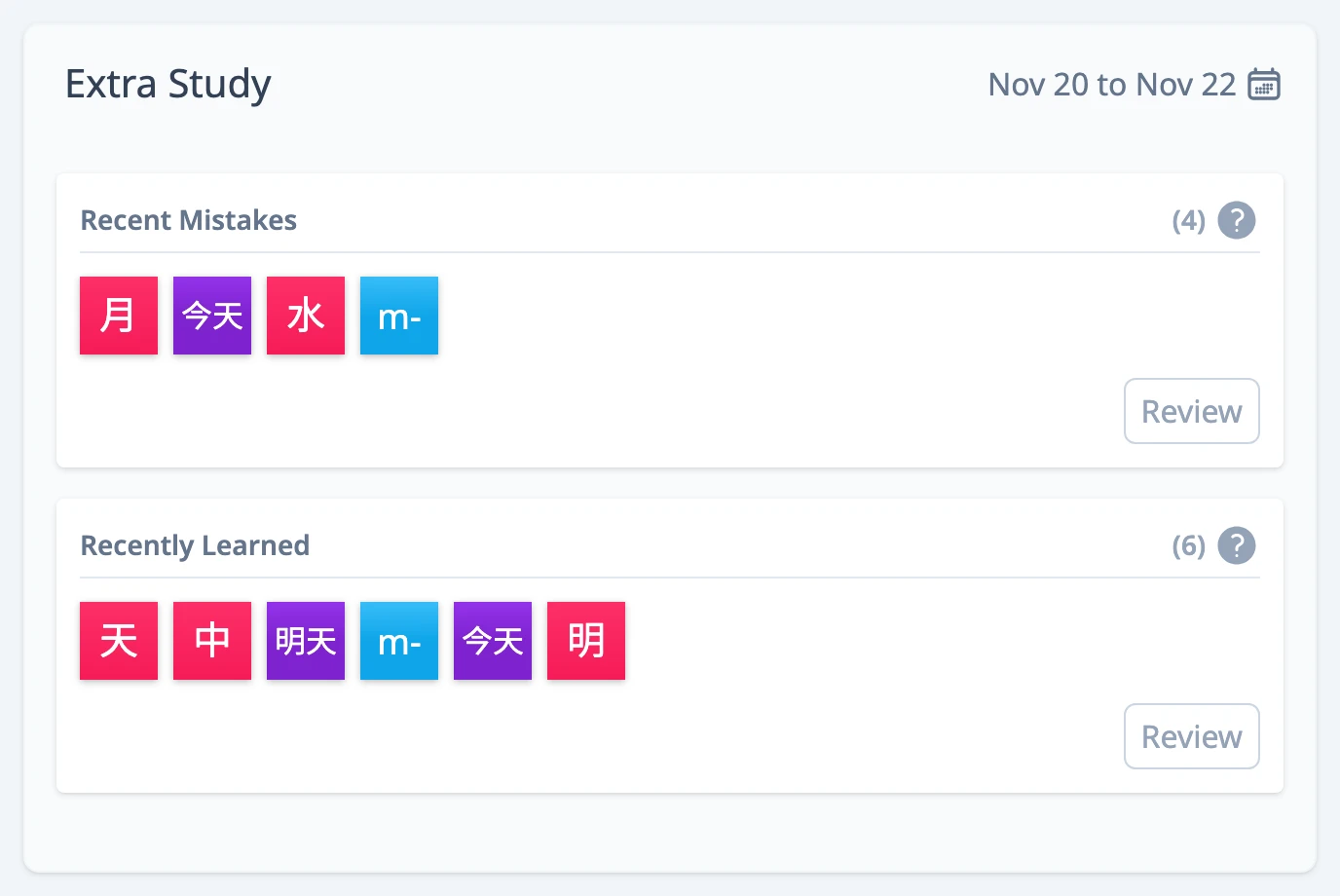
Extra Study lets you practice learned items without waiting for their scheduled reviews. Your answers do not change their SRS stages, next review dates, or review history. See Extra study and review scheduling for how this differs from scheduled reviews.
The panel has two groups, both based on the selected date range. An item can appear in both groups.
Recent Mistakes
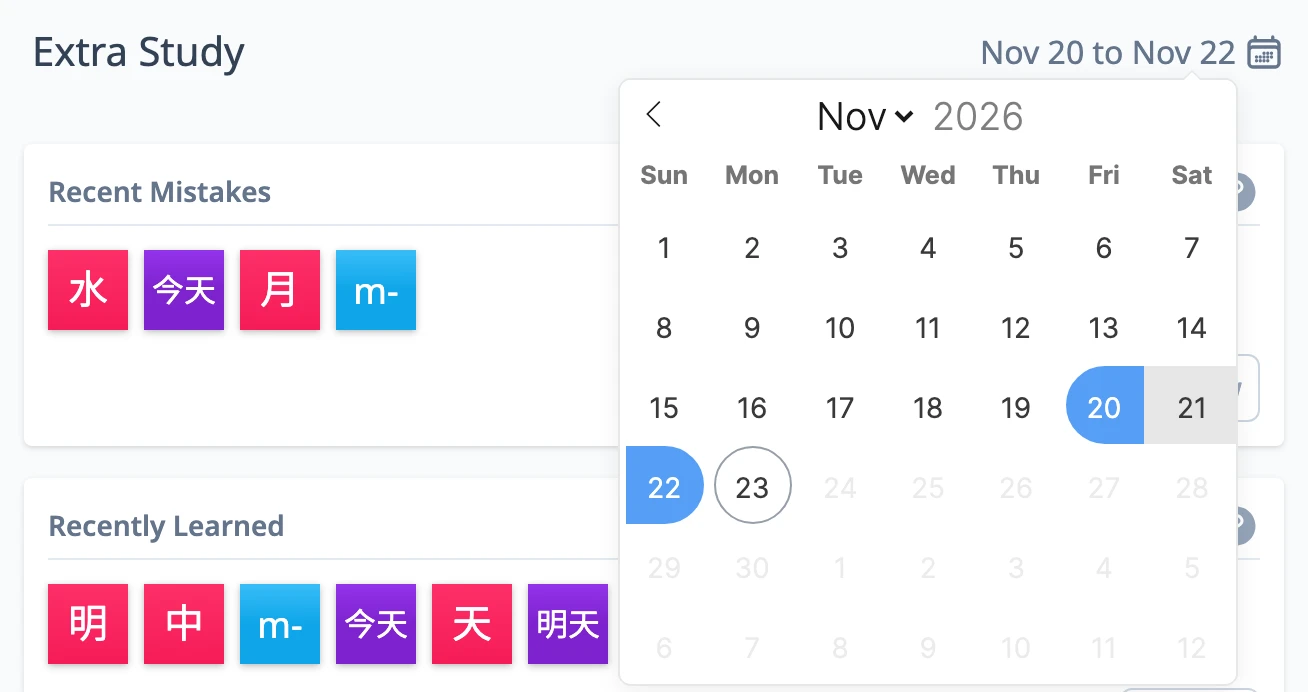
Recent Mistakes contains items you answered incorrectly in reviews during the selected date range. Use it to revisit items you have been having trouble remembering.
Recently Learned
Recently Learned contains items introduced in your lessons during the selected date range. Use it for additional practice with new material.
Choosing a date range
By default, the panel covers the current study day and the previous two days. Click the date range or calendar icon to choose a different day or range within the past month. Both groups update to match your selection.
Viewing and practicing items
Each group shows item tiles and a count. If there are more tiles than initially shown, click + to expand the group.
To start practicing:
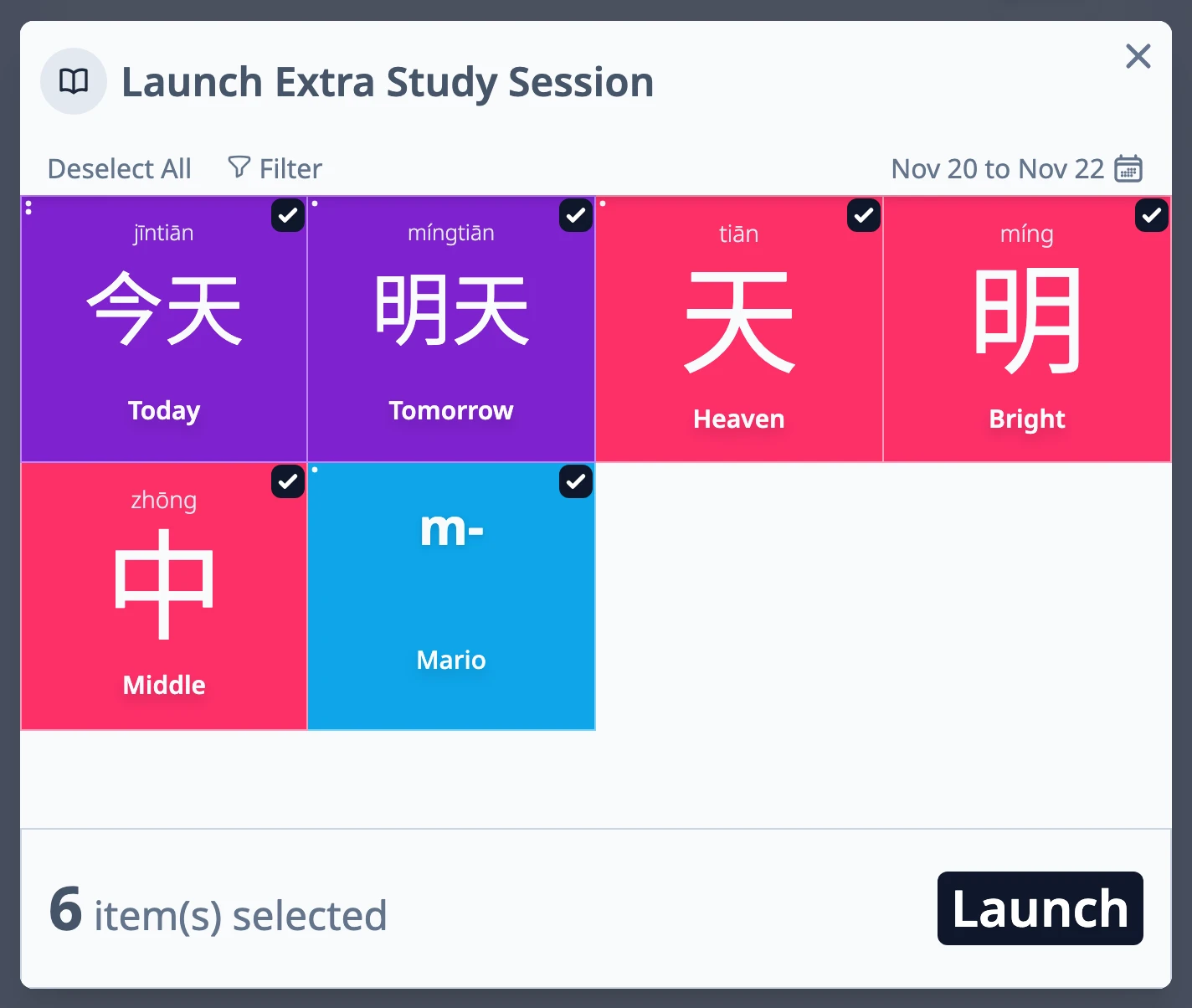
- Click Review under Recent Mistakes or Recently Learned to open Launch Extra Study Session.
- Select the items you want to practice. Use Select All or Deselect All to change the selection together.
- Use Filter to show or hide item types, or change the date range within the dialog.
- Click Launch to start extra study with the selected items.
The selected-item count shows how many items will be included. You must select at least one item to launch a session.
Upcoming Reviews
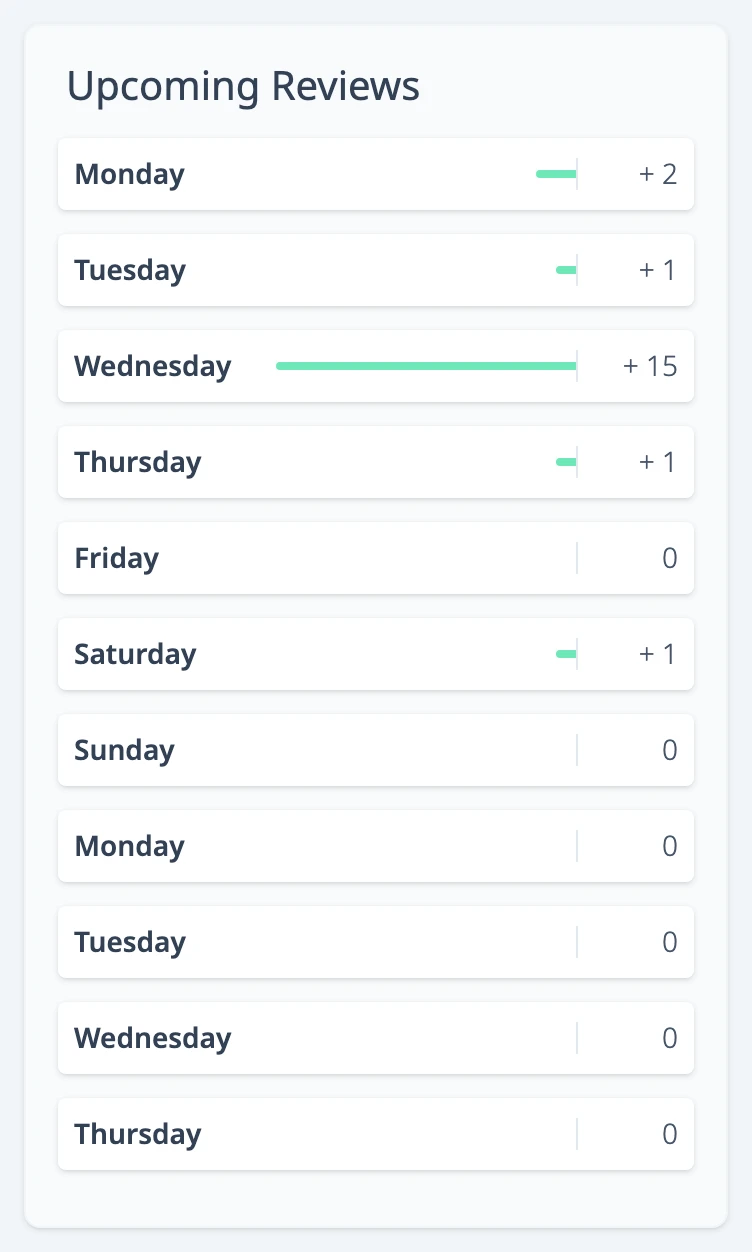
Upcoming Reviews shows how many additional reviews are scheduled to become available on each of the coming days. The bars make it easy to compare the number scheduled for each day.
These are already scheduled reviews, not a prediction of every review you will do: completing lessons and reviews can add new reviews to the schedule. See When reviews become available for the daily cutoff.
SRS Stage Distribution
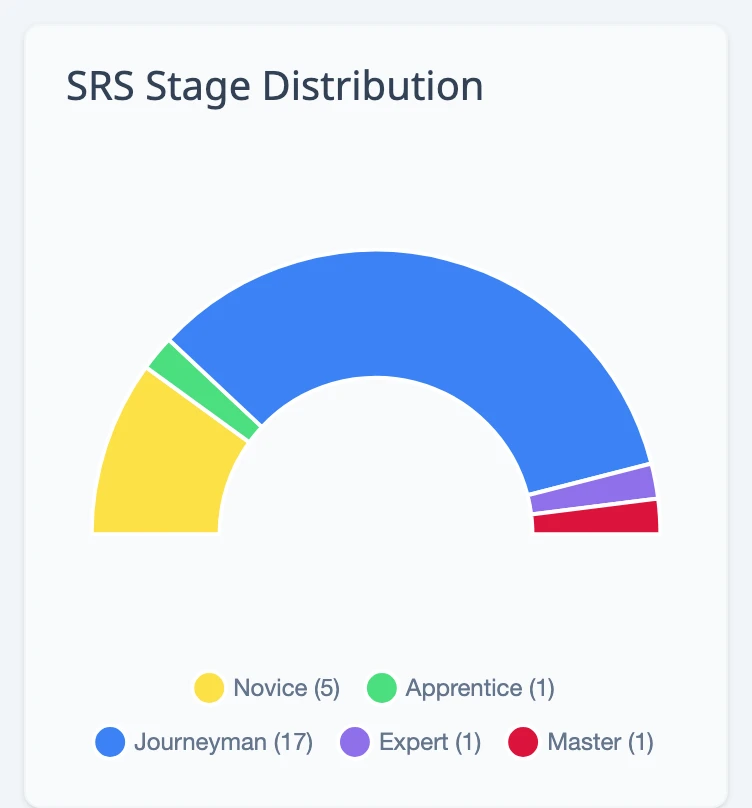
SRS Stage Distribution shows how your items are distributed across the SRS stages. Hover over a segment to see its count, or use the legend to show or hide stages.
This is a snapshot of your items' current stages, rather than a history of how they have changed. See SRS stages for what the stage names mean.
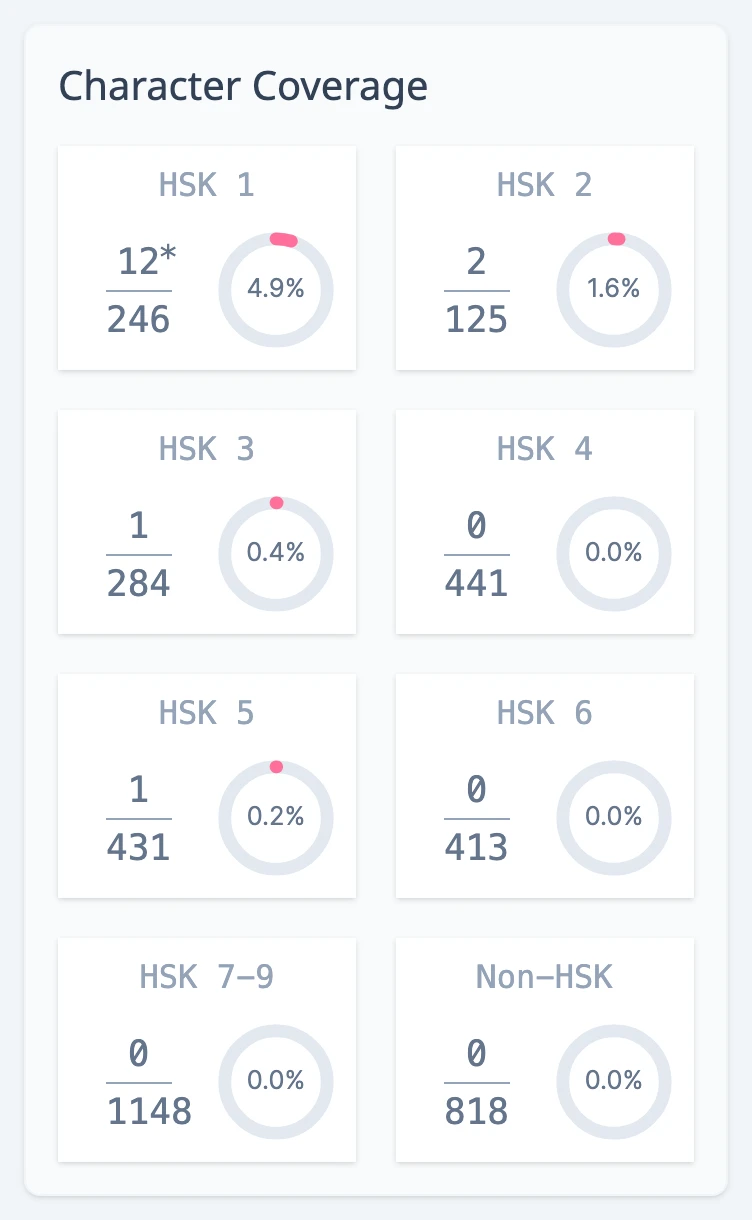
Character Coverage
Character Coverage shows your progress through the characters in each HSK level, with a separate Non-HSK group for characters outside those levels. Each card shows your count against the level's total and a circular progress indicator.
The count includes learned and skipped characters; it does not require them to reach a particular SRS stage. An asterisk appears next to the count if it includes skipped characters.
Click a card to browse the characters in that level. This panel measures character coverage, not how many words you have learned at each HSK level.