
Lists
Overview
Lists let you organize characters, words, and dictionary items into groups that match your study goals. For example, you might create a list for vocabulary from a textbook chapter, words you encounter while reading, or a topic you want to focus on.
You can add items individually as you browse the curriculum or paste a list to add several at once. Each list shows your progress and provides filters to help you find items by HSK level, SRS stage, or status.
Adding an item to a list does not automatically prioritize it or change its study progress. To learn items sooner, prioritize them for upcoming lessons. Once you have learned items in a list, you can also study them together.
Creating a list
The Lists page shows your lists for your selected course. To open it, click Lists in the Curriculum dropdown.
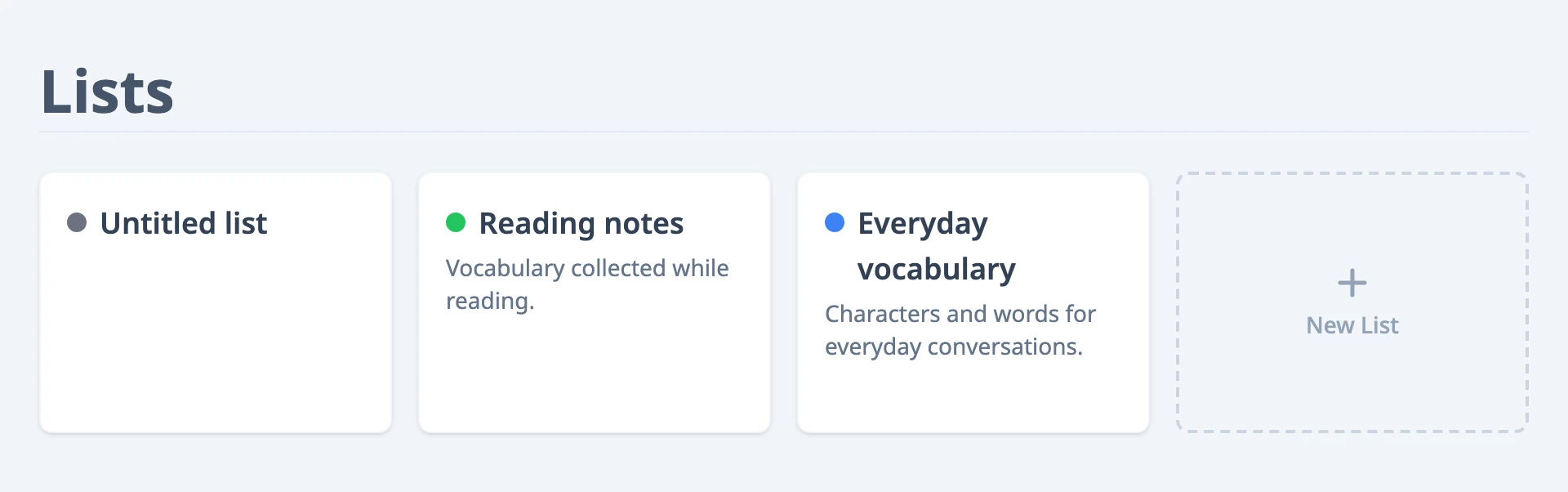
Each list appears as a card showing its name, color, and description, if one has been added. Click a card to open the list detail page. Lists for the simplified and traditional Chinese courses are kept separate.
Click New List on the Lists page to create a list. This creates an empty list named Untitled list and opens its detail page with the header in edit mode so that you can enter a name for the list.
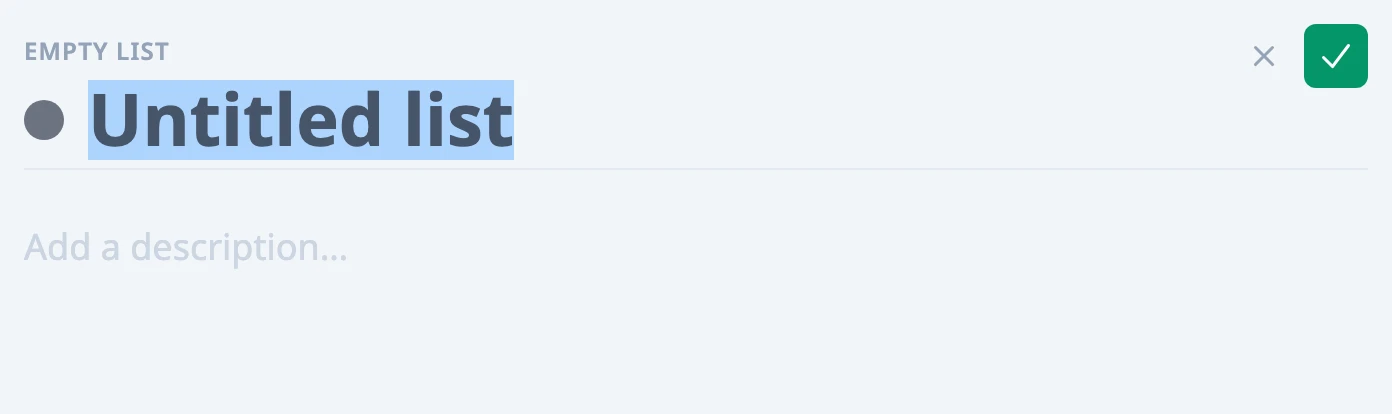
You can also click the colored dot next to the name to choose a color, and enter an optional description beneath the name. Click the checkmark button (Save changes) at the top right to save your changes.
The × button (Discard changes) closes the editor without saving your edits; it does not delete the newly created list. You can edit the list again at any time.
Once your list is created, add items as you browse or paste a list to fill it in bulk. You can create up to 200 lists per course.
Adding and removing items
You can add items individually as you browse HanziHero or add them in bulk by pasting a list. Items can be added to any number of lists.
Adding individual items
Open the three-dot actions dropdown on an item's tile or at the top right of its detail page. Your lists appear beneath the prioritizing and skipping actions, each with its name and colored icon. Click the name of the list you want to add the item to.
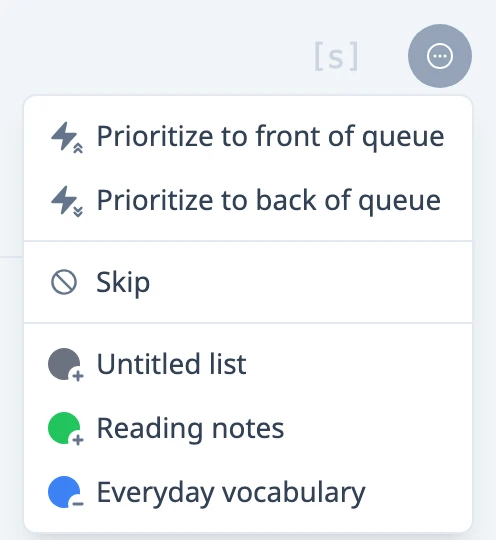
A plus on the list's icon means the item can be added to that list. Once added, the icon changes to a minus. Clicking the same list again removes the item, so you do not need to open the list itself to manage its membership.
Pasting a list
To add several items at once, open the list detail page and click the clipboard button (Paste a list) at the top right. An empty list also has a Paste a list button beneath its introductory message.
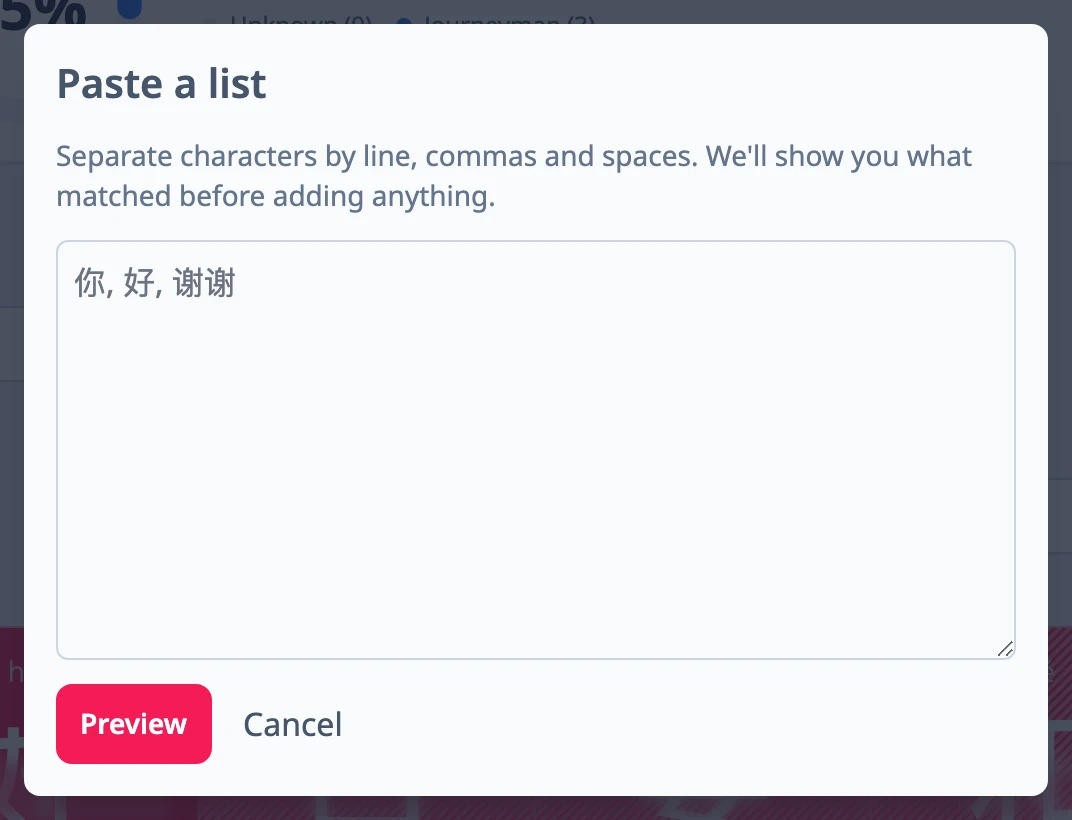
Pasting a list looks for existing characters, curated words, and dictionary items in your list's course. It does not create new vocabulary entries. You can review the matches before adding anything.
Preparing your text
Paste the Chinese characters or words you want to add, separated by line breaks, spaces, commas, or semicolons. Chinese separators such as 、, ,, and ; also work. For example:
你
好
你好
Keep each word together: 你好 is treated as one word, while 你 好 is treated as two individual characters. Use the script of your selected course, and paste the vocabulary itself rather than pinyin, English definitions, or numbered textbook entries. The importer looks for exact matches; it does not split sentences into words.
Repeated entries in your pasted text are checked only once. For large lists, paste in batches of no more than 5,000 items. If the input is too large, the preview shows a warning; paste the remaining items separately.
Reviewing matches
Click Preview to see which entries HanziHero found. Nothing is added to your list yet.
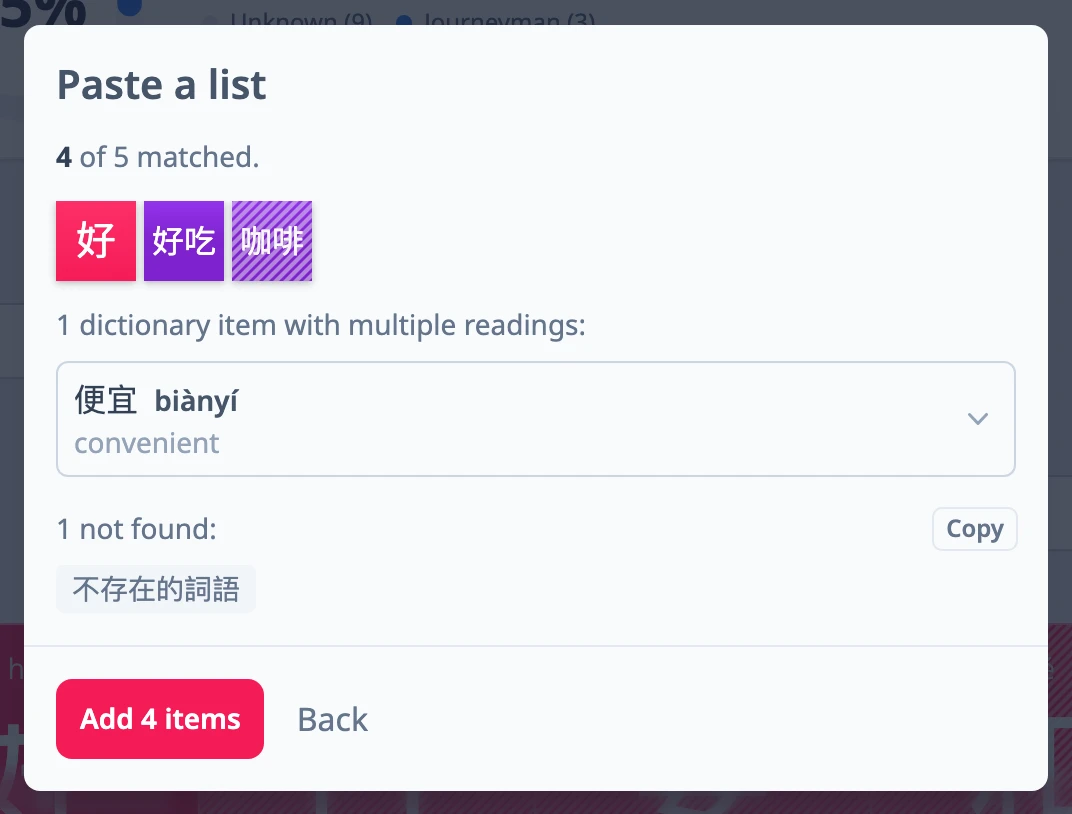
Single characters are matched to HanziHero's characters. For words, HanziHero first looks for a curated word, then checks the dictionary if no curated word matches.
Matched items appear as icons in the preview. If a dictionary entry has multiple readings, it appears with a dropdown showing its pinyin and definitions. Open the dropdown and choose the reading you want to add. The first reading is selected by default, so check that it matches the word you intended.
Entries without a match appear under not found and will not be added. Click Copy to copy those entries for later checking. If there are more than 40 unmatched entries, click Show all to reveal the rest.
To revise your text, click Back.
Importing items
Once you have checked the matches and chosen any dictionary readings, click Add … items at the bottom of the preview. The button shows how many matched entries will be submitted.
HanziHero adds the matched items and returns you to the list detail page. A confirmation message shows how many items were newly added. Items already in the list are not added again, so this count may be lower than the preview's count. Unmatched entries are left out.
You can repeat the process to add more items to the same list.
Removing items
Open the actions dropdown on an item's tile or detail page, then click the name of the list you want to remove it from. A minus on the list's colored icon indicates that the item is currently in that list.
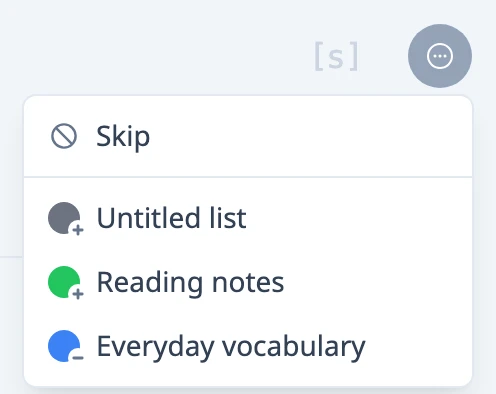
Removing an item only removes it from that list. It does not reset its study progress, remove it from other lists, or change whether it is prioritized or skipped. You can add it again at any time.
Viewing a list
You can open a list's detail page by clicking its card on the Lists page.
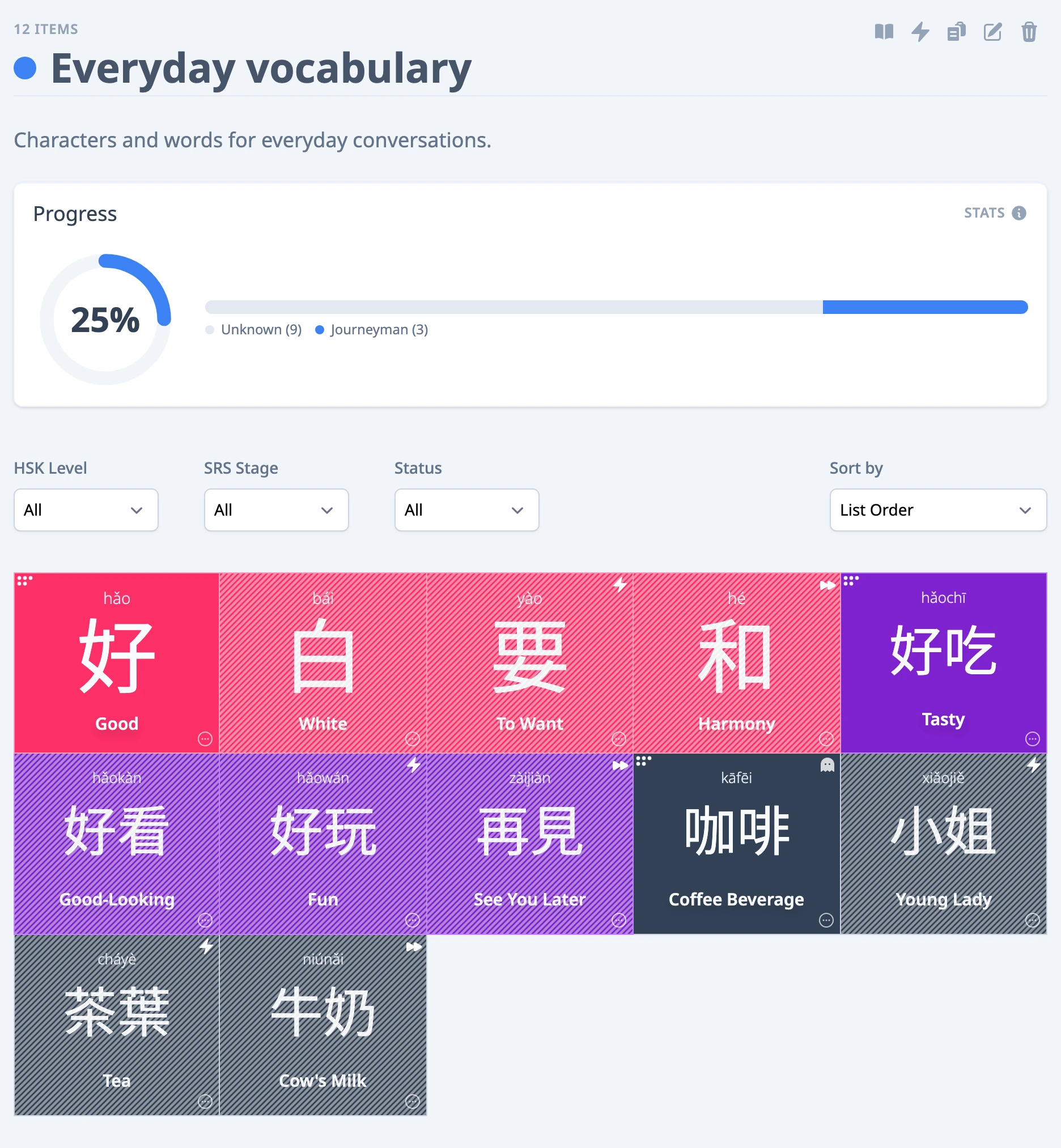
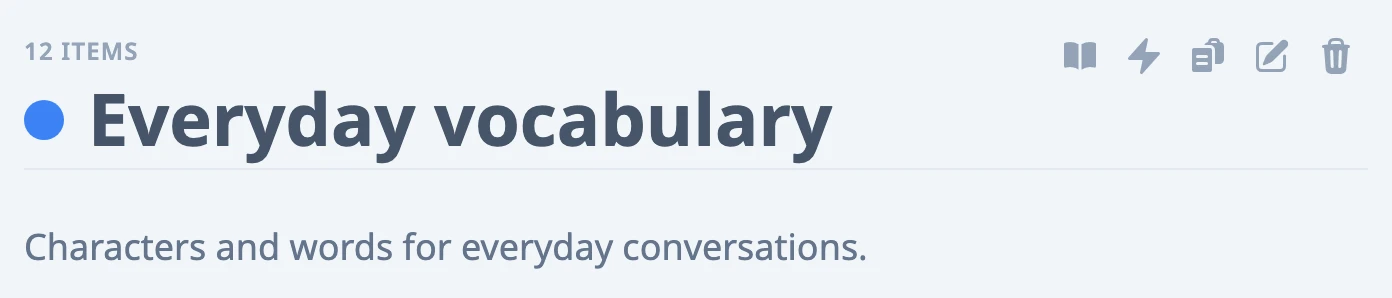
The top of the page shows the list's name, item count, and description, if one has been added. The buttons at the top right provide actions for prioritizing, adding items in bulk, editing, and deleting the list. A button for studying the list also appears once it contains learned items that are not skipped.
Below the header, the page shows your progress and the items in the list. Filters and sorting options appear above the item tiles when the list is not empty. The list shows items that match all selected filters. Filtering changes which items are displayed; it does not remove them from the list.
Progress
The Progress section summarizes your study progress across the entire list, regardless of the selected filters. It appears once the list contains at least one item.
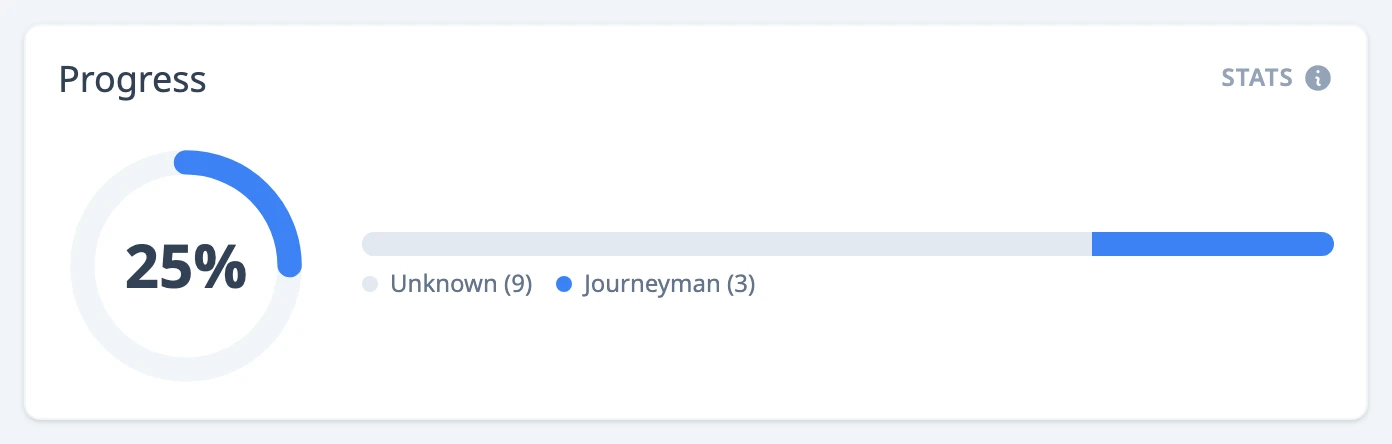
The circular indicator shows the percentage of items you have learned. Skipped items remain part of the list's total but do not count as learned, even if you previously learned them.
Once you have learned at least one item that is not skipped, a colored bar shows how the list's items are distributed across SRS stages. The legend beneath it shows the number of items in each stage. Unknown represents items that do not count as learned, including skipped items. Hover over a bar segment or its legend entry to highlight that group.
Hover over or click Stats to see more detailed counts:
- Learned shows the number of learned, non-skipped items out of the total number of items in the list.
- Skipped shows the number of skipped items.
- Due shows the number of learned, non-skipped items currently due for review.
- Leeches shows the number of items marked as a leech.
- Item-type counts show how many items of each type the list contains.
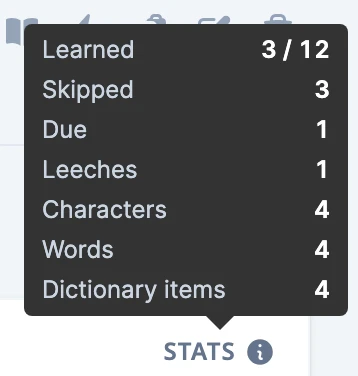
Counts for skipped items, due reviews, leeches, and individual item types only appear when they are greater than zero.
HSK level filter
The HSK Level filter allows you to narrow the list to items at a given HSK level.
- All shows all items in the list. It is equivalent to having no HSK level filter at all.
- HSK 1, HSK 2, HSK 3, HSK 4, HSK 5, and HSK 6 each show items at the corresponding level.
- HSK 7-9 filters the list to those in levels 7, 8, and 9. They are combined into one option because the HSK itself combines those into one group.
- Non-HSK filters to items not in the HSK.
SRS stage filter
The SRS Stage filter allows you to find items that are at a given SRS stage.
- All shows all items in the list. It is equivalent to having no SRS stage filter at all.
- Unlearned shows items that have not yet been learned.
- Learned shows items that have been learned, regardless of their SRS stage.
- Novice, Apprentice, Journeyman, Expert, and Master each show items at the corresponding SRS stage.
Status filter
The Status filter allows you to find items that have a given status within HanziHero.
- All shows all items in the list. It is equivalent to having no status filter at all.
- Prioritized shows items that are prioritized.
- Skipped shows items that have been skipped.
- Normal shows items with no special status.
- Leeched shows items that have been marked as a leech.
Sorting
Use the Sort by dropdown to sort the list.
- List Order sorts items in the order they were added to the list.
- Lesson Order sorts items according to their lesson order, taking their priority into account.
- HSK Level sorts items by their HSK level.
- Least Recently Learned sorts items by when you learned them, with the earliest learned items first. Unlearned items appear last.
- Most Recently Learned sorts items by when you learned them, with the most recently learned items first. Unlearned items appear last.
Item tiles
Each item in the list is presented as a tile. The tile's color and contents depend on whether it is a character, word, or dictionary item. Click a tile to open the item's detail page.
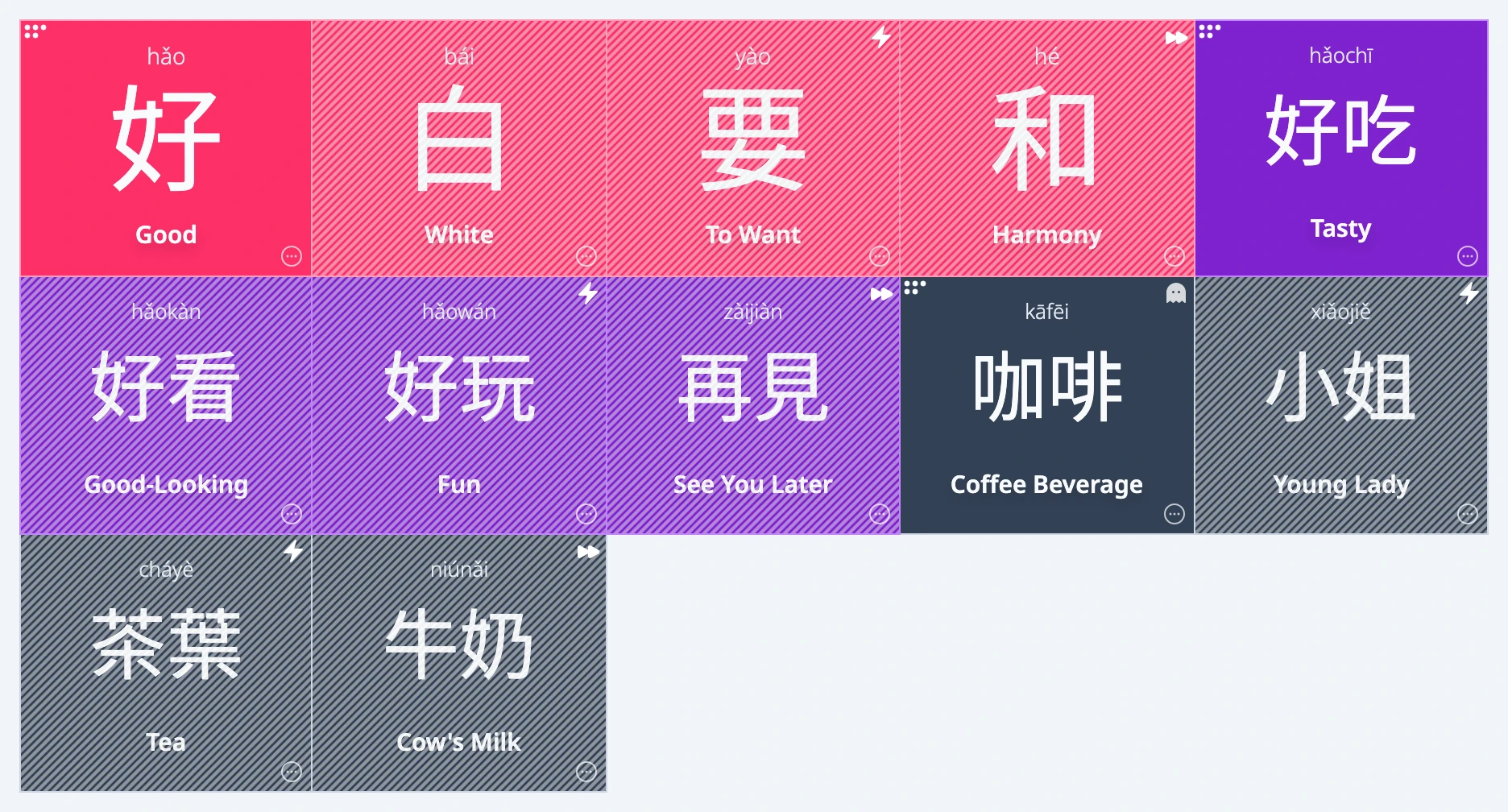
Unlearned items have a diagonal pattern overlay. Learned items have a solid background.
Skipped items have a fast-forward icon at the top right. Prioritized items have a lightning-bolt icon at the top right.
The button at the bottom right of each tile opens the actions dropdown. It provides options for managing the item, such as prioritizing or skipping it.
Learning with a list
Lists let you conveniently prioritize items for upcoming lessons and practice learned items together.
Prioritizing items
To learn items from a list sooner, open its detail page and click the lightning-bolt button (Prioritize list) at the top right.
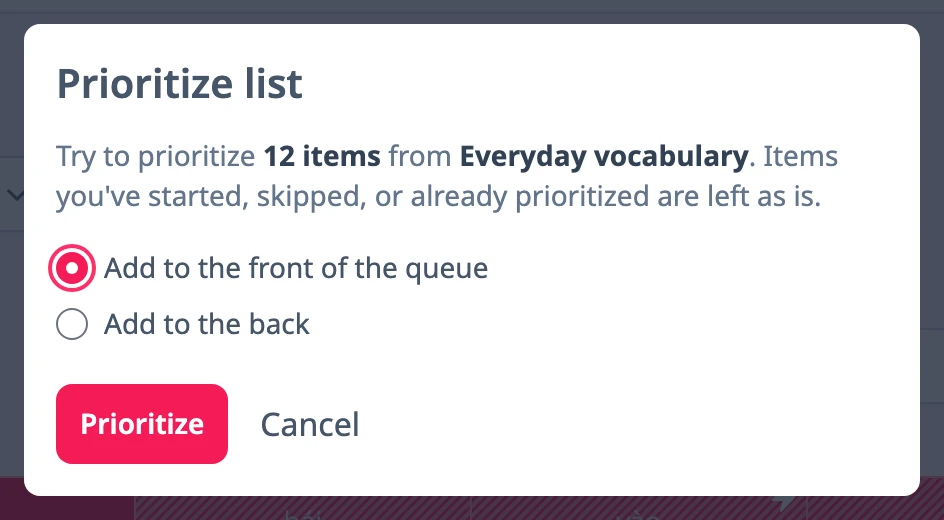
The action uses the current filters and sorting. To prioritize only part of the list, select the filters you want first. For example, choose HSK 1 to prioritize items at that level. Use List Order if you want to keep the order in which you added the items.
In the confirmation dialog, choose where to add the items:
- Add to the front of the queue places them before items already in your priority queue.
- Add to the back places them after items already in your priority queue.
Click Prioritize to confirm, or Cancel to leave the queue unchanged. Items you have already started, skipped, or prioritized are left as they are; components and sounds are not prioritized by this action. The confirmation message shows how many items were newly prioritized, which may be fewer than the number shown in the dialog.
Prioritizing does not immediately teach the items or bypass their lesson prerequisites. They become available through your lessons, subject to your lesson settings and unlocking requirements.
Studying learned items
Once your list contains at least one learned item that is not skipped, a book-open button (Study list) appears at the top right of its detail page. Click it to start a practice session for the list's learned items.
Unlearned and skipped items are not included, and the session uses the entire list rather than the filters currently selected on its detail page.
This is additional practice: your answers do not change the items' SRS stages or scheduled review times. To learn items you have not yet studied, prioritize them for lessons instead.
Editing and deleting lists
You can change a list's name, color, and description or delete a list you no longer need. Neither action resets the study progress of its items.
Editing a list
Open the list's detail page and click the pencil button (Edit list) at the top right.
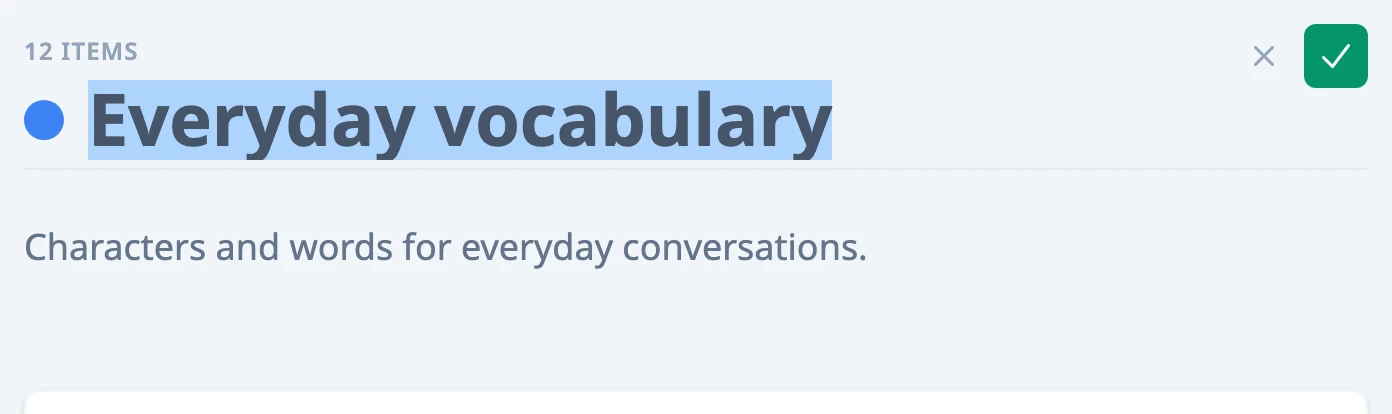
Change the name, click the colored dot to choose a different color, or update the description beneath the name. Click the checkmark button (Save changes) to save your edits. Click the × button (Discard changes) to close the editor without saving them.
Editing these details does not change which items belong to the list. To change its contents, add or remove items instead.
Deleting a list
Open the list's detail page and click the trash button (Delete list) at the top right. A confirmation dialog asks whether you want to delete the list.
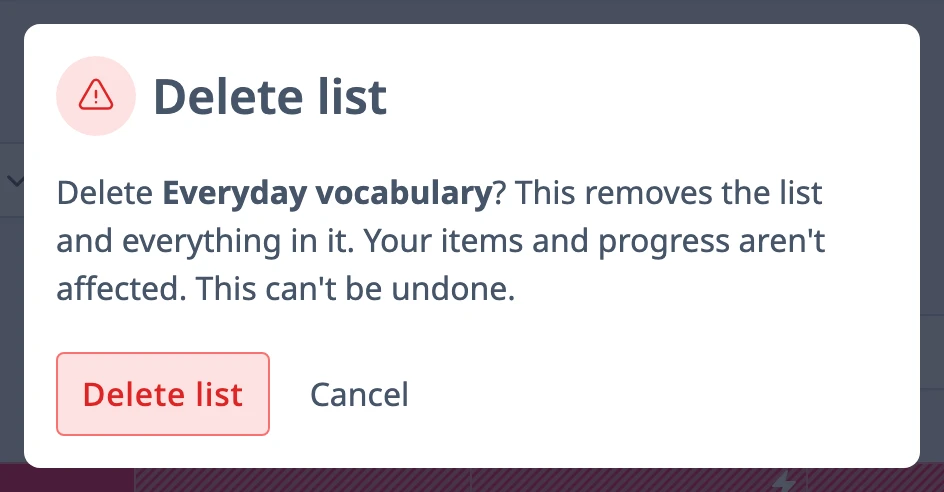
Click Delete list to permanently delete it, or Cancel to keep it. Deleting a list cannot be undone.
Only the list and its item memberships are removed. The items themselves, their study progress, and their memberships in other lists are not affected. Deleting the list also does not remove its items from your priority queue.